
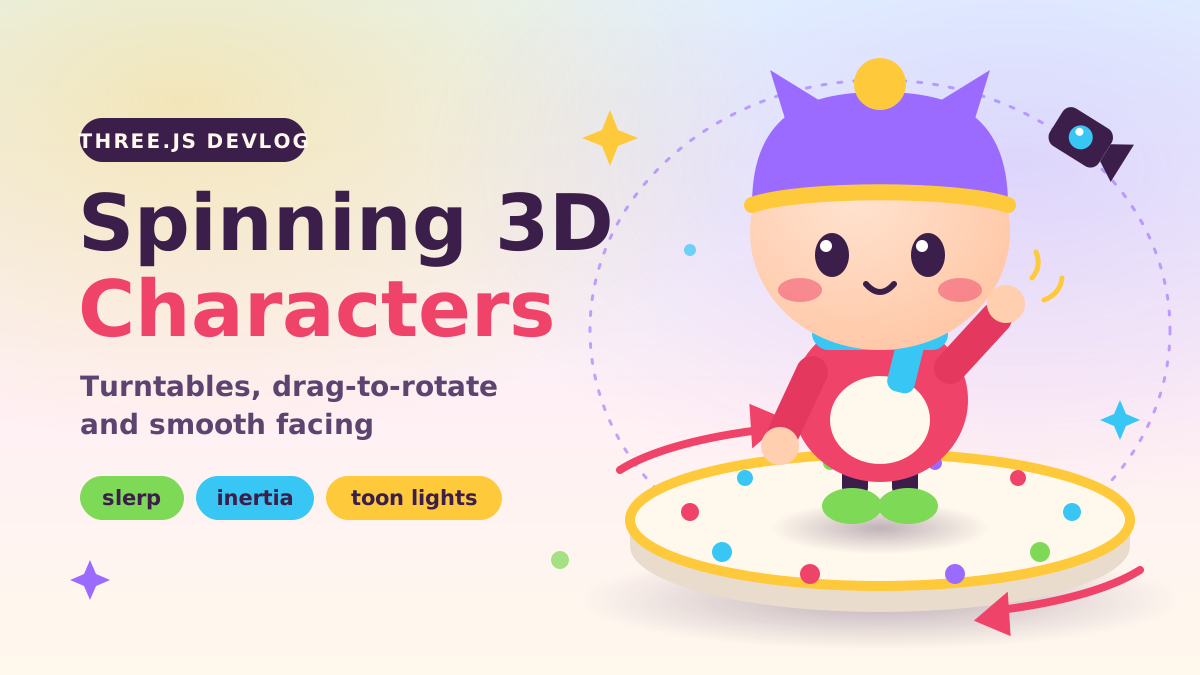
Every character-select screen, shop preview and "meet the cast" page wants the same thing: a little 3D hero standing on a pedestal, slowly turning, that you can grab and spin with your finger. It looks like a five-minute job, and the first version usually is. Then the details show up: colours look washed out, the model judders on phones, a flick of the mouse sends it spinning forever, and asking it to "face left" makes it whirl 340° the wrong way round.
In this post we build that turntable in plain three.js, with no build step, and fix each of those problems along the way. Everything below comes straight from the live demo, a chibi built entirely from primitives so there are no model files to download.
Renderer, camera and colour
The demo loads three.js through an import map from a CDN, so the whole page is a single HTML file with a <script type="module">. Most of the "why does it look flat?" problems are fixed by four renderer settings:
const renderer = new THREE.WebGLRenderer({ canvas, antialias: true, alpha: true });
renderer.setPixelRatio(Math.min(window.devicePixelRatio, 2)); // cap DPR at 2
renderer.outputColorSpace = THREE.SRGBColorSpace;              // correct colours on screen
renderer.toneMapping = THREE.ACESFilmicToneMapping;            // soft highlight roll-off
renderer.toneMappingExposure = 0.95;
renderer.shadowMap.enabled = true;
renderer.shadowMap.type = THREE.PCFSoftShadowMap;
renderer.setClearColor(0x000000, 0); // transparent: the CSS gradient shows through

const camera = new THREE.PerspectiveCamera(32, 16 / 10, 0.1, 50);
const lookTarget = new THREE.Vector3(0, 0.85, 0);
// Camera on an orbit: radius, polar angle phi (from +Y), azimuth theta (around Y).
const orbit = new THREE.Spherical(6.6, THREE.MathUtils.degToRad(74), 0);

function placeCamera() {
  camera.position.setFromSpherical(orbit).add(lookTarget);
  camera.lookAt(lookTarget);
}
- Pixel ratio cap. A phone with a 3× screen renders nine times the pixels of a 1× screen. Above 2× the extra sharpness is hard to see, but the fill-rate cost is real, so we clamp it.
- sRGB output + tone mapping. Hex colours you pick in a design tool are sRGB. three.js converts them to linear for lighting and back to sRGB on output, which keeps your palette honest. ACES tone mapping rolls off bright highlights instead of clipping them to flat white.
- Transparent clear colour. The pastel gradient is plain CSS behind the canvas. That's cheaper than a sky shader and easier to restyle.
- A narrow field of view. 32° flattens perspective a bit, which suits chibi proportions. A wide lens makes the big head look even bigger.
The camera position is described in spherical coordinates: a radius, a polar angle φ measured down from +Y, and an azimuth θ around the Y axis. This makes "orbit the camera" or "zoom out a little" a single number change instead of trigonometry.

Resizing with ResizeObserver
Because the demo lives inside an iframe in this article, listening to window.resize isn't enough: the container can change size without the window changing. A ResizeObserver on the stage element catches every case:
function resize() {
  const w = stage.clientWidth;
  const h = stage.clientHeight;
  if (!w || !h) return;
  renderer.setSize(w, h, false); // false: CSS controls the canvas size
  camera.aspect = w / h;
  // Pull the camera back on tall / narrow screens so the character still fits.
  orbit.radius = camera.aspect < 1 ? 6.6 / Math.max(camera.aspect, 0.5) : 6.6;
  placeCamera();
  camera.updateProjectionMatrix();
  if (!running) renderer.render(scene, camera);
}
new ResizeObserver(resize).observe(stage);
Passing false as the third argument stops three.js from writing inline width/height styles, so the canvas stays at 100% of its parent. The spherical orbit pays off here too: on a portrait screen we simply push the radius out.
A chibi from primitives (or a glTF)
In production you'd export your character from Blender as .glb and load it with GLTFLoader from three/addons/loaders/GLTFLoader.js. Call loader.loadAsync(url), add gltf.scene to your pivot, and drive any baked clips with an AnimationMixer. Everything in the rest of this article works the same either way. For the demo, a handful of spheres, capsules, a torus and two cones is enough for a cute hat-wearing kid:
// A 2-step gradient map gives MeshToonMaterial its cel-shaded look.
const toneData = new Uint8Array([150, 255]);
const toonRamp = new THREE.DataTexture(toneData, toneData.length, 1, THREE.RedFormat);
toonRamp.minFilter = THREE.NearestFilter;
toonRamp.magFilter = THREE.NearestFilter;
toonRamp.needsUpdate = true;

const toon = (color) => new THREE.MeshToonMaterial({ color, gradientMap: toonRamp });

function part(geometry, material, x = 0, y = 0, z = 0) {
  const mesh = new THREE.Mesh(geometry, material);
  mesh.position.set(x, y, z);
  mesh.castShadow = true;
  return mesh;
}

// Put a feature on the front of the head: z is solved from the (squashed) sphere equation.
function onFace(mesh, x, y, lift = 0.0) {
  const sx = x / skull.scale.x, sy = y / skull.scale.y;
  const z = Math.sqrt(Math.max(HEAD_R * HEAD_R - sx * sx - sy * sy, 0)) + lift;
  mesh.position.set(x, y, z);
  mesh.lookAt(x * 2, y * 2, z * 2); // face outward along the normal
  head.add(mesh);
  return mesh;
}
The gradient map is the whole toon effect: MeshToonMaterial looks up the light amount in that tiny texture, and NearestFilter keeps the steps hard. We tried three steps first, but with three lights each band edge draws its own curve across a sphere, and it started to look like overlapping glass. Two steps read much cleaner. The platform uses MeshStandardMaterial instead, because a smooth surface makes the toon character pop.
onFace() is a small trick that saves a lot of nudging. Given an (x, y) on the face, it solves the sphere equation for z and turns the feature to face outward, so eyes, blush and mouth sit on the curve of the head. Each eye gets a tiny white sphere as a child for the highlight, which is the cheapest way to add life to a face.
Three-point lighting and a soft contact shadow
The lighting is the classic photography setup, made a bit softer for a pastel scene:
- A HemisphereLight (warm cream sky, lilac ground) as ambient fill, so shadowed sides never go muddy.
- A key
DirectionalLightup and to the right. This is the only shadow caster, with a 1024² map and a shadow camera fitted tightly around the platform. - A weak, cool fill from the left to open up the dark side.
- A lilac rim light from behind that outlines the silhouette against the background.
Real shadow maps give crisp shapes but rarely the soft darkening right where feet meet the floor. A radial-gradient "blob" on a flat quad fakes that contact shadow for almost nothing:
function makeBlobTexture() {
  const size = 128;
  const c = document.createElement('canvas');
  c.width = c.height = size;
  const g = c.getContext('2d');
  const grad = g.createRadialGradient(size / 2, size / 2, 0, size / 2, size / 2, size / 2);
  grad.addColorStop(0, 'rgba(59,31,74,0.55)');
  grad.addColorStop(0.5, 'rgba(59,31,74,0.22)');
  grad.addColorStop(1, 'rgba(59,31,74,0)');
  g.fillStyle = grad;
  g.fillRect(0, 0, size, size);
  const tex = new THREE.CanvasTexture(c);
  tex.colorSpace = THREE.SRGBColorSpace;
  return tex;
}

function makeBlob(width, depth, y) {
  const blob = new THREE.Mesh(
    new THREE.PlaneGeometry(width, depth),
    new THREE.MeshBasicMaterial({ map: blobTexture, transparent: true, depthWrite: false })
  );
  blob.rotation.x = -Math.PI / 2;
  blob.position.y = y;
  blob.renderOrder = 1;
  return blob;
}
One blob sits under the platform and stays still. A second one sits under the feet, inside the turntable, so it spins with the character. depthWrite: false stops the transparent quad from hiding things drawn after it.
The turntable: one pivot Group
The core idea is tiny. The platform, its coloured dots, the foot shadow and the character all go into a single THREE.Group called turntable. Spinning the display means rotating that one group around Y. The character never moves inside it, so its own transforms stay free for animation like bobbing and waving.
Drag to spin, with inertia
Pointer events cover mouse, pen and touch with one code path. While dragging, the pointer moves the turntable directly, and we keep a smoothed estimate of the angular velocity. When the pointer lets go, that velocity carries on and slowly eases back to the auto-spin speed:
canvas.addEventListener('pointermove', (e) => {
  if (!spin.dragging) return;
  const now = performance.now();
  const dt = Math.max((now - spin.lastTime) / 1000, 1 / 240);
  // One full canvas width of drag = one full turn.
  const dAngle = ((e.clientX - spin.lastX) / canvas.clientWidth) * Math.PI * 2;
  turntable.rotateY(dAngle);
  // Smooth the measured speed so one jittery event can't fling the model.
  spin.velocity = THREE.MathUtils.lerp(spin.velocity, dAngle / dt, 0.4);
  spin.lastX = e.clientX;
  spin.lastTime = now;
});

function endDrag(e) {
  if (!spin.dragging) return;
  spin.dragging = false;
  stage.classList.remove('dragging');
  if (canvas.hasPointerCapture(e.pointerId)) canvas.releasePointerCapture(e.pointerId);
  // If the pointer rested before release, don't fling.
  if (performance.now() - spin.lastTime > 80) spin.velocity = 0;
  spin.velocity = THREE.MathUtils.clamp(spin.velocity, -14, 14);
}
canvas.addEventListener('pointerup', endDrag);
canvas.addEventListener('pointercancel', endDrag); // e.g. browser took over for a vertical scroll

// Each frame, when not dragging:
const target = spin.auto ? spin.autoSpeed : 0;
spin.velocity += (target - spin.velocity) * (1 - Math.exp(-spin.damping * dt));
turntable.rotateY(spin.velocity * dt);
A few details make this feel right:
- Scale by canvas width, not raw pixels, so a full-width drag is one full turn on any screen.
- The 80 ms rule. If you drag, stop, hold, then let go, you meant "put it here", not "throw it". Zeroing the velocity in that case kills accidental flings.
1 - Math.exp(-k * dt)is exponential damping that doesn't depend on frame rate. A naivevelocity *= 0.95per frame glides twice as long on a 120 Hz screen as on a 60 Hz one.touch-action: pan-yon the canvas tells mobile browsers that vertical swipes are theirs (page scroll) and horizontal ones are ours. When the browser takes over a gesture it firespointercancel, which we treat as a normal release. Without this, an embedded demo traps the reader's thumb.

Facing a direction: slerp, not Euler lerp
The "Face left / front / right" buttons should turn the character smoothly to a set heading. The obvious approach is to lerp rotation.y toward a target angle, and it breaks in a sneaky way. After a few spins the turntable might sit at 350°, and "face front" means 0° (or 360°, or 720°). Lerping the number from 350 to 10 sweeps 340° backwards through every angle in between. You can wrap angles by hand to fix it, but then you're re-solving it everywhere, and it gets much worse once more than one axis is involved.
Quaternions don't have this problem. Quaternion.slerp interpolates along the shortest arc between two orientations, however many full turns came before:
const UP = new THREE.Vector3(0, 1, 0);
const FACINGS = { left: -Math.PI / 2, front: 0, right: Math.PI / 2 };

function faceDirection(name) {
  setAutoSpin(false);
  spin.velocity = 0;
  faceTarget = new THREE.Quaternion().setFromAxisAngle(UP, FACINGS[name]);
}

// In updateSpin(dt):
if (faceTarget) {
  // Frame-rate independent smoothing: same feel at 30, 60 or 120 fps.
  const t = 1 - Math.exp(-7 * dt);
  turntable.quaternion.slerp(faceTarget, t);
  if (turntable.quaternion.angleTo(faceTarget) < 0.001) {
    turntable.quaternion.copy(faceTarget);
    faceTarget = null;
  }
}
Slerping a fixed fraction every frame gives an ease-out: fast at first, settling softly. If you'd rather turn at a constant speed, like a character in a game turning toward a click, use turntable.quaternion.rotateTowards(faceTarget, turnSpeed * dt). It moves at most that many radians per frame and stops exactly on target. Grabbing the model at any point simply clears faceTarget, so the player always wins over the animation.
Idle life: bob, breathe, blink, wave
A perfectly still model on a turntable looks like a product photo. A few sine waves fix that. These are applied to an inner bob group and to body parts, never to the turntable:
- Bob:
bob.position.y = (Math.sin(t * 2.4) * 0.5 + 0.5) * 0.05, a gentle float of a few centimetres. - Breathing: the body's scale stretches up as it narrows, using the same sine wave, so volume roughly holds.
- Head sway: two slower sines on the head's
rotation.zandrotation.x, at different speeds so the motion never visibly loops. - Blink: a random 2.5–5 s timer squashes the eyes'
scale.yfor 0.12 s. - Wave: the arm hangs from a shoulder pivot
Group, so raising it is onerotation.z, shaped by asin(p * π)envelope plus a fast wiggle.
The OrbitControls alternative
If you'd rather move the camera than the model, OrbitControls handles a lot for you: damping, auto-rotate, zoom and limits:
import { OrbitControls } from 'three/addons/controls/OrbitControls.js';

const controls = new OrbitControls(camera, renderer.domElement);
controls.target.copy(lookTarget);
controls.enableDamping = true;     // inertia; call controls.update() every frame
controls.dampingFactor = 0.08;
controls.autoRotate = true;        // turntable effect, by orbiting the camera
controls.autoRotateSpeed = 2;
controls.enablePan = false;
controls.minDistance = 4;
controls.maxDistance = 9;
controls.minPolarAngle = THREE.MathUtils.degToRad(50); // don't look from below the floor
controls.maxPolarAngle = THREE.MathUtils.degToRad(85);
It's a great fit for model viewers. For a character showcase we chose the pivot approach because the lights and shadows stay fixed while the model turns, so you see the lighting change across the character, the way a real turntable works. OrbitControls also uses vertical drags for tilting, which fights with page scrolling inside an article.
Don't render what nobody sees
A turntable is the kind of thing that sits in a page footer burning battery. The demo only runs its loop while the tab is visible and the canvas is on screen:
function frame() {
  rafId = requestAnimationFrame(frame);
  const dt = Math.min(clock.getDelta(), 1 / 20); // clamp after tab switches / hitches
  updateSpin(dt);
  updateIdle(dt);
  renderer.render(scene, camera);
}

function start() {
  if (running) return;
  running = true;
  clock.getDelta(); // discard the time spent paused
  rafId = requestAnimationFrame(frame);
}

function stop() {
  running = false;
  cancelAnimationFrame(rafId);
}

function syncLoop() {
  if (!document.hidden && onScreen) start();
  else stop();
}

document.addEventListener('visibilitychange', syncLoop);
new IntersectionObserver(([entry]) => {
  onScreen = entry.isIntersecting;
  syncLoop();
}).observe(stage);
The delta clamp matters more than it looks. Without it, the first frame after a tab switch can report a dt of several seconds, and every system that multiplies by dt jumps: the spin teleports and the slerp snaps. Capping at 1/20 s turns a long hitch into a brief slow-motion moment instead.
Performance checklist
- Share geometry and materials. The 16 platform dots share one
SphereGeometry, and the body parts reuse a handful of materials. Fewer unique materials means fewer shader programs and state changes. - One shadow caster, tight frustum. Only the key light casts shadows, and its shadow camera covers just the platform, so a 1024² map stays sharp.
- Fake what you can. The contact shadow is a 128 px canvas gradient. The background is CSS.
- Keep segment counts modest. Small features like eye highlights don't need 64-segment spheres.
- Merge for big scenes. With dozens of characters, merge static parts with
BufferGeometryUtils.mergeGeometriesor useInstancedMeshfor repeated props. - Cap DPR, pause when hidden, clamp delta. These three lines do more for mobile battery life than any shader tweak.
That's the whole turntable: a pivot group, a velocity that decays, quaternions for turning, and a render loop that knows when to sleep. Swap the primitive chibi for your own glTF and you have a character showcase ready for a shop or select screen. Have fun spinning!


Comments
Loading comments…