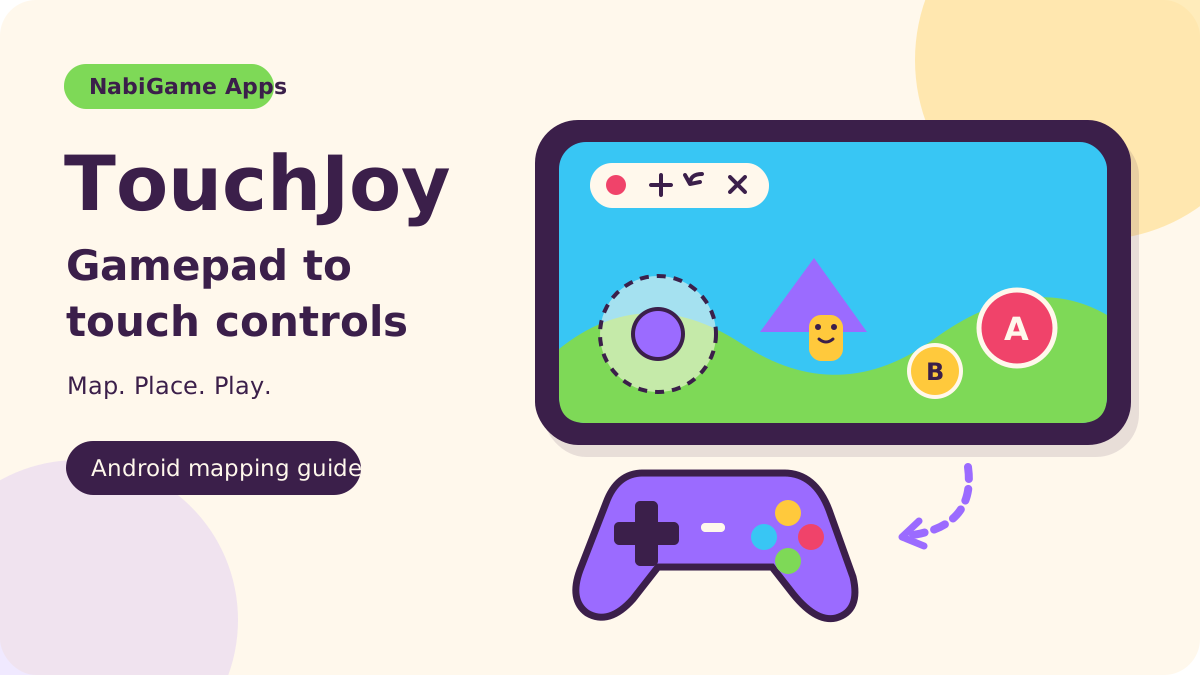
We make TouchJoy: Gamepad Keymapper at NabiGame; this guide explains it and the topic, it is not an independent review. TouchJoy maps a connected gamepad or keyboard to touch controls on Android using an editable overlay and ADB touch injection. It is useful when you want physical buttons for a touch-controlled game, provided your device works with the setup and the game permits mapping.
Key takeaways
- TouchJoy supports tap, hold and directional joystick mappings, with separate profiles for different games.
- The verified setup uses display-over-apps permission and wireless debugging, rather than an Accessibility Service.
- Bluetooth or USB connection is only the starting point: test your actual controller, phone and game together.
- Native controller support is our first recommendation when available. Mapping does not guarantee compatibility or permission to use it.
- Profiles are stored locally, but that does not establish that the entire app is offline or analytics-free.
How does gamepad-to-touch mapping work?
A native controller-aware game reads a button press and decides what action it means. A touch mapper adds another translation: your physical button activates a chosen position on the screen. For example, you can place a tap mapping over a game's jump button, then bind it to a gamepad key. The game receives a touch where that control sits.
Android distinguishes button events from motion events. Its controller documentation, updated in November 2026, describes the event delivery paths:
“The system sends MotionEvent events through onGenericMotionEvent and KeyEvent events through onKeyDown and onKeyUp.”
— Google, Android Developers
That distinction matters when choosing controls: an analog stick is not merely another face button. Our rule of thumb is to establish a working tap mapping before building movement controls. Confirm that the physical input is detected, then confirm that its touch lands on the intended target.
In TouchJoy's inspected implementation, the selected device's input passes through an ADB-backed input pipeline to a virtual touch device. The overlay supplies the editor and visible mapping points. These are separate jobs: seeing a mapping circle does not prove that touch injection is ready.
Why does TouchJoy need an overlay and wireless debugging?
The overlay lets you position controls while looking at the game. Google's settings reference, updated in August 2026, describes the permission screen this way:
“Activity Action: Show screen for controlling which apps can draw on top of other apps.”
— Google, Android Developers
Allowing that screen access does not itself enable gamepad-to-touch conversion. TouchJoy also asks you to enable its Touch injection (ADB) connection. Google's ADB documentation, updated in September 2026, defines the underlying tool:
“Android Debug Bridge (adb) is a versatile command-line tool that lets you communicate with a device.”
— Google, Android Developers
The TouchJoy source inspected for this guide declares an overlay service and uses ADB for input; it does not declare an Accessibility Service. Follow the app's own setup rather than a generic mapper tutorial that sends you into accessibility settings. Debugging access deserves deliberate approval: use your own trusted phone and network, and do not share pairing codes.
As checked in November 2026, TouchJoy's Google Play listing requires Android 11 or newer for wireless debugging. Google's ADB guide, checked in 2026, also documents wireless debugging support from Android 11. This is a platform requirement, not a promise that every eligible phone behaves identically.
Which controllers should you expect to work?
TouchJoy's supported connection categories are gamepads and keyboards connected through Bluetooth or USB OTG. The app lets you choose the connected control device. There is no verified model-by-model TouchJoy compatibility list in the materials checked, so we cannot certify a particular controller family here.
Google's controller testing guidance, checked in November 2026, recommends covering Xbox-style, Nintendo Switch-style and PlayStation-style controllers. That is Android development guidance, not TouchJoy certification. Treat a familiar button layout as a starting point for testing, not proof of identical behavior.
- Bluetooth: pair the controller in Android, then select the actual device in TouchJoy. Test key assignment before editing a full layout.
- USB OTG: connect the controller or keyboard, then reopen the device list if it does not appear immediately. Check recognition before troubleshooting touch coordinates.
- Keyboard: use individual keys for tap or hold actions, and directional keys for a Move control. Choose the correct keyboard if several inputs appear.
TouchJoy also exposes simulated test devices in its source. Those help explore the interface; selecting a simulated gamepad does not verify your physical controller. Our recommendation is to start with hardware you already own and evaluate the complete setup before buying another accessory.
How do you get started in 3 steps?
This sequence groups the app's verified guide into connection, mapping and testing. Choose a game that permits mapping, and use a quiet practice area where missed inputs do not matter.
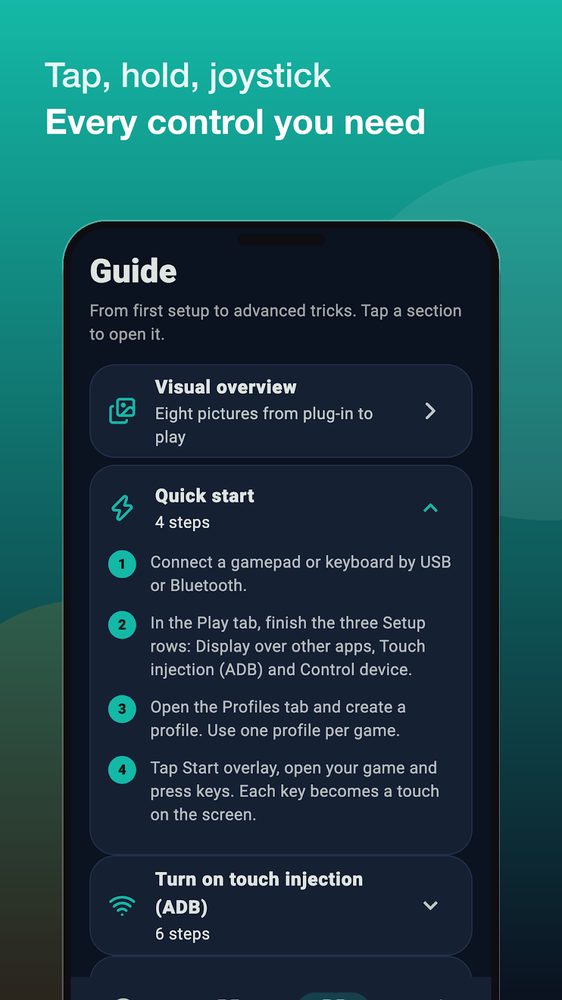
- Connect and prepare. Pair or plug in your controller. In TouchJoy's Play tab, complete Display over other apps, Touch injection (ADB) and Control device. Join Wi-Fi, enable Developer options and Wireless debugging, then follow TouchJoy's pairing flow. Choose Pair device with pairing code and enter the displayed code through the TouchJoy notification. Wait for the connection to become ready.
- Create and place. Open Profiles and create a profile for the game. Start the overlay, open the game in the orientation you intend to use, and tap the red dot to edit. Add a tap button, drag it onto a visible game control, select it and press the physical key to assign. Add hold or Move controls only after the basic mapping works.
- Leave edit mode and test. Tap the red square to finish editing. Test press, release and movement separately, then try them together. Reopen editing to adjust placement if necessary. Close the overlay with its close control when finished, and keep separate profiles for layouts that differ.
Bind quick actions to taps, anything that must stay pressed to a hold, and directional movement to Move over the game's virtual joystick; the examples below show this with concrete numbers. Match each mapping to the game's actual behavior.
Real examples
These walk-throughs use the screens above. The profile names and button counts match the screenshots; the people and phones are illustrative.
1. Linh plays a shooter with a Bluetooth gamepad
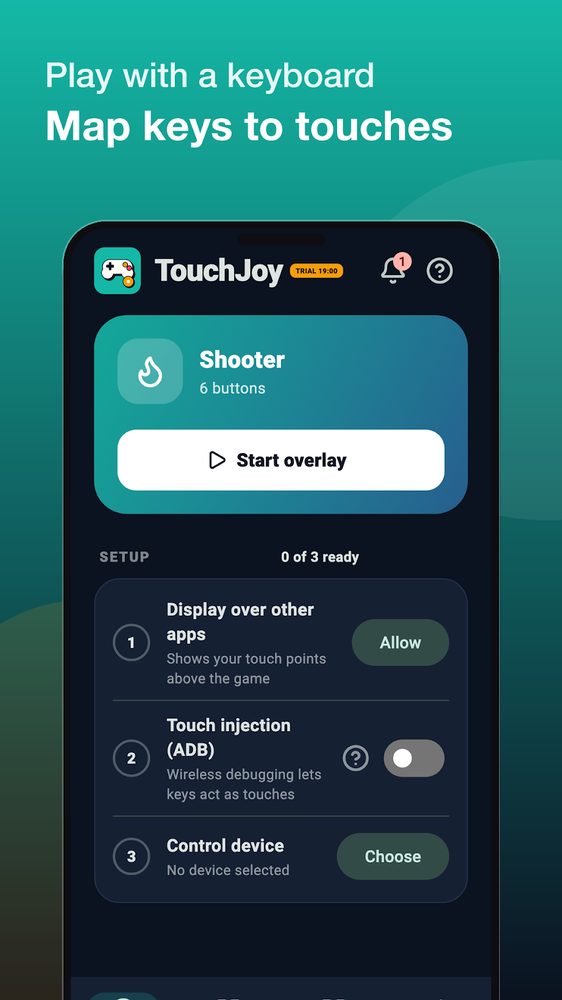
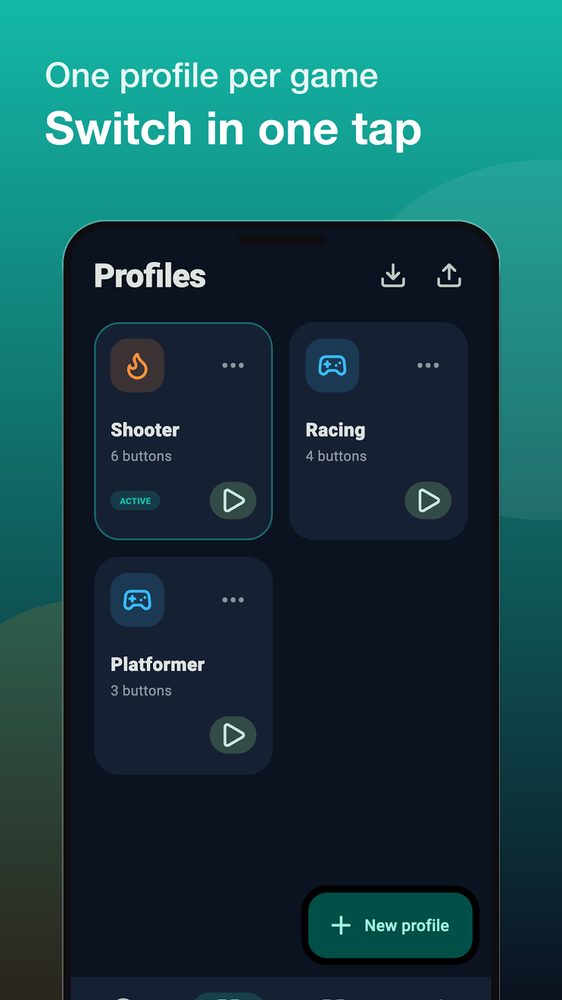
Linh has a phone with Android 13 and a Bluetooth pad. She pairs the pad in Android settings first. In TouchJoy's Play tab (screenshot 1) the Setup card reads 0 of 3 ready, so she works down the rows: Allow for Display over other apps, the Touch injection (ADB) switch after enabling Wireless debugging in Developer options, and Choose on Control device to pick her pad. Then she opens Profiles (screenshot 3), taps New profile and names it Shooter. She taps Start overlay, opens the game in landscape, taps the red dot to edit, adds 6 buttons (fire, jump, reload, crouch, grenade, and a Move control for walking), drags each onto the matching on-screen control, selects it and presses the pad key to assign it. She taps the red square to leave edit mode. Result: the profile card now shows 6 buttons and the ACTIVE tag, and the next time she only taps the play arrow on that card.
2. Minh drives a racing game with a keyboard on a tablet
Minh connects a USB keyboard to his tablet through an OTG adapter. He opens Profiles (screenshot 3), creates a profile called Racing and ends with 4 buttons: left and right as taps, gas and brake as hold buttons. A hold button keeps the touch pressed for as long as the key is down, which is what a throttle needs; a tap would only press once. In Control device he picks the keyboard rather than the tablet's on-screen keyboard (several inputs can be listed). Result: holding the key keeps the on-screen pedal pressed, releasing it lifts the touch, and the Platformer profile with 3 buttons stays untouched for a different game, one tap away.
3. Hoa works out how long the free trial lasts
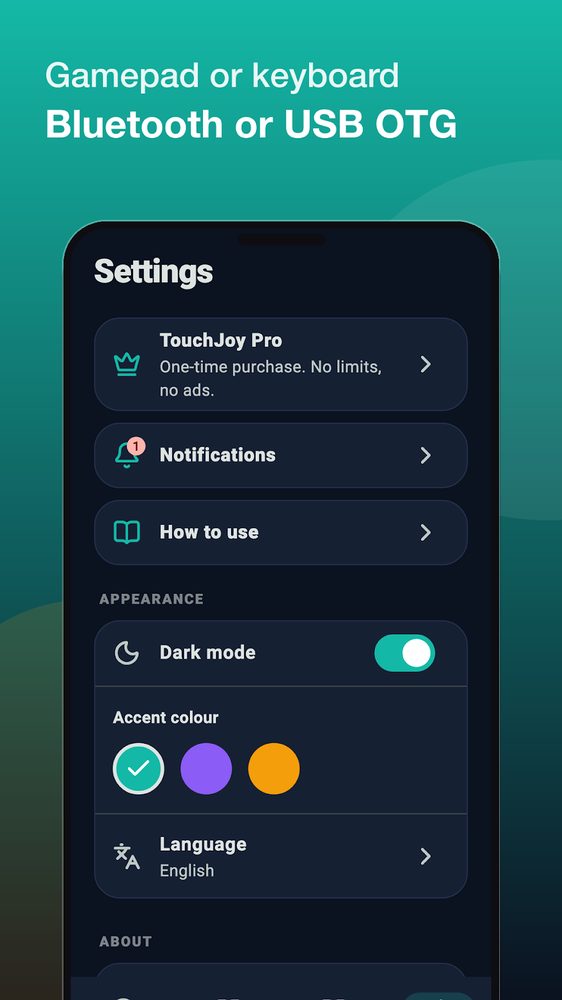
The free trial is a usage clock of 19 minutes: it runs while the TouchJoy screen is visible or the overlay is running (the TRIAL badge in screenshot 1 shows the time left). Hoa has used 14 minutes over two evenings, so 5 minutes remain. She taps the badge and chooses Watch an ad. The app sets her used time to 14 - 20 = -6 minutes, so 6 + 19 = 25 minutes remain. She plays those 25 minutes; the clock reaches 0 and the overlay stops. Another ad now gives exactly 20 minutes: used time is capped at 19, then 19 - 20 = -1, leaving 20. The source allows up to 100 ad claims in total, which is at most 100 x 20 = 2,000 extra minutes (about 33 hours). If she would rather skip the ads, the Settings screen (screenshot 4) has the TouchJoy Pro entry, described there as a one-time purchase with no limits and no ads.
What TouchJoy does and does not do
The inspected app provides tap, hold and Move controls, a floating editor, profile duplication, and profile import and export. You can reposition and resize mapping buttons. Those tools help construct a layout; they do not make every touchscreen interaction suitable for a controller.
Our recommendation is to consider TouchJoy when you prefer physical inputs, can manage wireless debugging, and play a game whose rules allow mapping. A less suitable case is someone expecting a universal plug-and-play controller solution or guaranteed competitive compatibility.
- Native controller support: try the game's own controller settings first. This is our preferred route when it meets your needs because the game itself defines the controller actions.
- TouchJoy mapping: use it to translate chosen inputs into screen touches where mapping is permitted. Expect to position controls and verify the result.
- Direct touch: keep it as an option when the game's interaction is awkward to express through fixed mapping points.
The honest limit in our live listing, checked in November 2026, is:
“Some games may block or limit input from automation tools.”
— NabiGame Studio, Google Play
This matters even when pairing and the overlay work. TouchJoy cannot promise that a game will accept injected touches, preserve a layout after its interface changes, or approve your use of mapping.
What should you check about fair play?
Read the game's current controller and third-party-tool rules before enabling a mapper. If the rules are unclear, ask the publisher about your intended setup. A successful technical test is not permission to use it in competitive play.
For a concrete example, Activision's Call of Duty: Mobile enforcement policy, dated 2019 and checked in November 2026, covers unsupported external hardware or applications used for cheating. It also addresses unauthorized third-party software used to gain an unfair advantage. That policy is neither an endorsement nor a specific ruling on TouchJoy.
Our recommendation is to avoid competitive use unless the publisher clearly permits your setup. Do not treat mapping as an anti-cheat workaround, and do not assume that an offline test establishes account safety online.
What about privacy and offline use?
TouchJoy stores profiles in local preferences, and its Play listing says no app account is needed. However, the listing's privacy wording and the current source do not fully agree: the listing says there is no analytics, while the inspected source initializes Firebase Analytics and enables collection in release mode. The app also includes AdMob advertising.
We therefore cannot substantiate an analytics-free claim for the current source or confirm the exact behavior of the installed store build from this review. Likewise, we do not promise fully offline operation: the in-app guide says wireless debugging needs Wi-Fi to stay on. Local profiles, internet availability and a local Wi-Fi connection are different things.
See TouchJoy on our apps page for its place in our wider tools collection. If you are planning controller-friendly interactions for your own project, our development services are relevant; for a TouchJoy setup question, contact us with your phone, controller and the symptom you see.
How TouchJoy differs from other apps
We make TouchJoy, so treat this as a list of checkable design choices rather than a verdict. Each point comes from the app's source or its own screens.
- No root and no PC. Root-based mappers need a modified phone, and ADB-script approaches need a computer cable or terminal. TouchJoy uses Android's on-phone wireless debugging, which is why Android 11 or newer is required.
- No Accessibility Service. Many mapper apps ask for accessibility access. TouchJoy's manifest declares an overlay service and uses ADB touch injection instead; the Setup card lists exactly three items (screenshot 1).
- No account or signup. Profiles live in local preferences on your phone and can be exported to a JSON file (the arrow icons in screenshot 3) and imported again, so moving to a new phone does not need a login.
- One layout per game, not one global layout. Profiles switch with a single tap on the play arrow. The face-button layouts use positional key codes, so one gamepad profile fits Xbox, PlayStation and Switch-style pads.
- Several control types. Tap, hold, a Move pad for direction keys, and an analog stick type for a left or right thumbstick. Macros (auto-repeat and tap sequences) exist but are Pro-only.
- The cost is time, not features. The free version has all of the setup but a 19-minute usage clock, extendable by rewarded ads, and it shows ads during the trial. Pro (one-time purchase, or subscription plans with a 3-day trial on the yearly plan) removes the limit and the ads. We do not list prices because the store sets them per region.
When to pick something else: use the game's own controller settings if it has them; choose a free mapper with no time limit if you do not want ads or a trial clock (accepting its permissions); stay with direct touch if the game needs swipes, pinch or free-aim gestures that fixed points cannot express; and skip TouchJoy on phones below Android 11. The app also uses the internet permission for ads and Firebase Analytics, so it is not a fully offline tool.
FAQ
Does TouchJoy require root or a PC?
The verified Play listing describes mapping without root and without a PC after setup. The in-app guide provides an on-phone wireless-debugging pairing flow. Device restrictions can still prevent that flow from working.
Why are my controller buttons doing nothing?
Check that overlay permission, ADB touch injection and the selected control device are ready. Confirm the overlay is running and leave edit mode before testing. If the controller is absent, reconnect it and reopen the device list.
Why do touches land in the wrong place?
Set the phone to your playing orientation before positioning mappings. Reopen the editor and align each mapping with the game's current control location. Test the corrected target before adjusting the rest of the layout.
Why does the ADB connection stop?
The app's guide says wireless debugging needs Wi-Fi to remain enabled. If the connection drops, return to TouchJoy and turn touch injection on again. Do not assume that visible overlay buttons mean the connection is still ready.
Is TouchJoy safe to use in every online game?
No universal approval or anti-cheat guarantee is established here. Check the publisher's current rules for your game and mode. Use native controller support when it satisfies your needs and is permitted.
Sources
- TouchJoy: Gamepad Keymapper — Google Play, accessed November 2026.
- Google: Handle controller actions, updated November 2026.
- Google: Overlay permission settings, updated August 2026.
- Google: Android Debug Bridge, updated September 2026.
- Activision: Call of Duty: Mobile Security & Enforcement Policy, dated 2019; accessed November 2026.
Comments
Loading comments…