
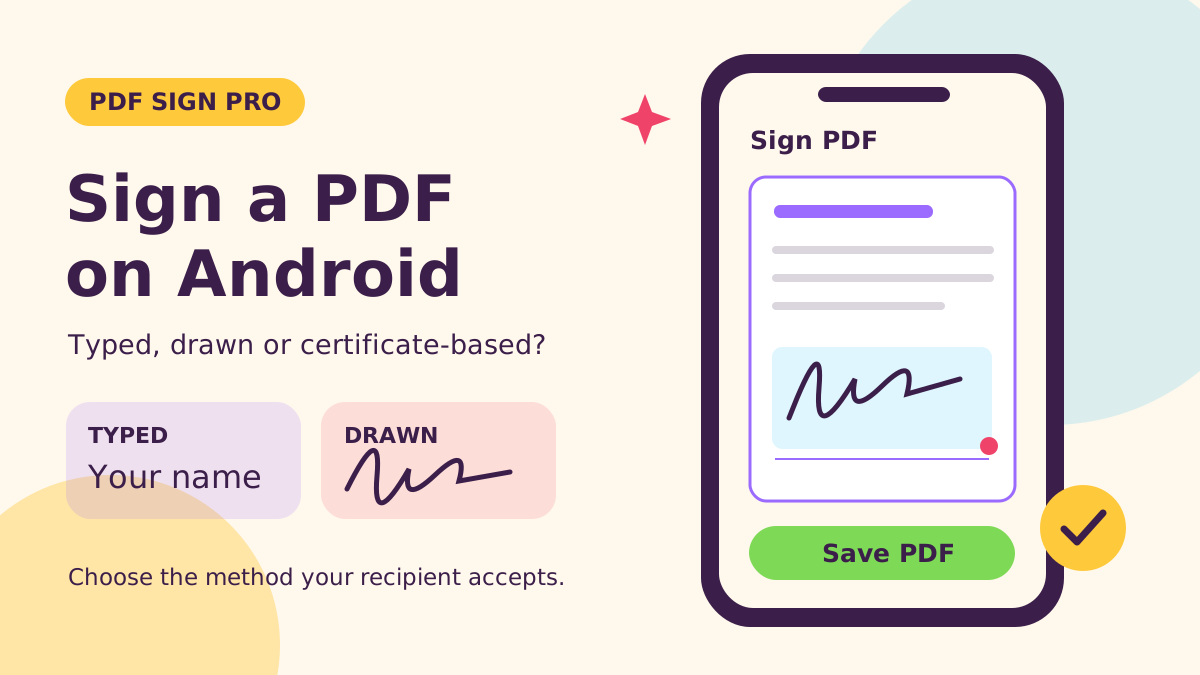
We make PDF Sign Pro at NabiGame; this guide explains it and the topic, it is not an independent review. To sign a PDF on Android, create a typed or drawn signature, place it on the document, then save and check the resulting PDF. That visible signature may be enough when the recipient accepts it and applicable rules permit it; a certificate-based signing requirement needs a different workflow.
Key takeaways
- Choose the signing method from the recipient’s requirements, not how impressive the signature looks.
- Typed and drawn marks can express agreement, but neither automatically provides identity verification or tamper detection.
- PDF Sign Pro supports local signature creation, placement, saving and sharing; it is not a qualified-signature service.
- Keep the original, inspect the exported copy and retain the recipient’s instructions.
Typed, drawn or certificate-based: what changes?
A useful distinction is between the appearance of a signature and the evidence behind it. A flowing handwritten mark can look convincing without proving who placed it. A plain-looking signature can belong to a stronger verification process. Our rule of thumb: settle the evidence requirement before choosing a font.
- Typed signature: enter your name and choose its appearance. In PDF Sign Pro, you can save the result as an image for placement. We recommend this when drawing on a small screen is uncomfortable and the recipient accepts a typed mark.
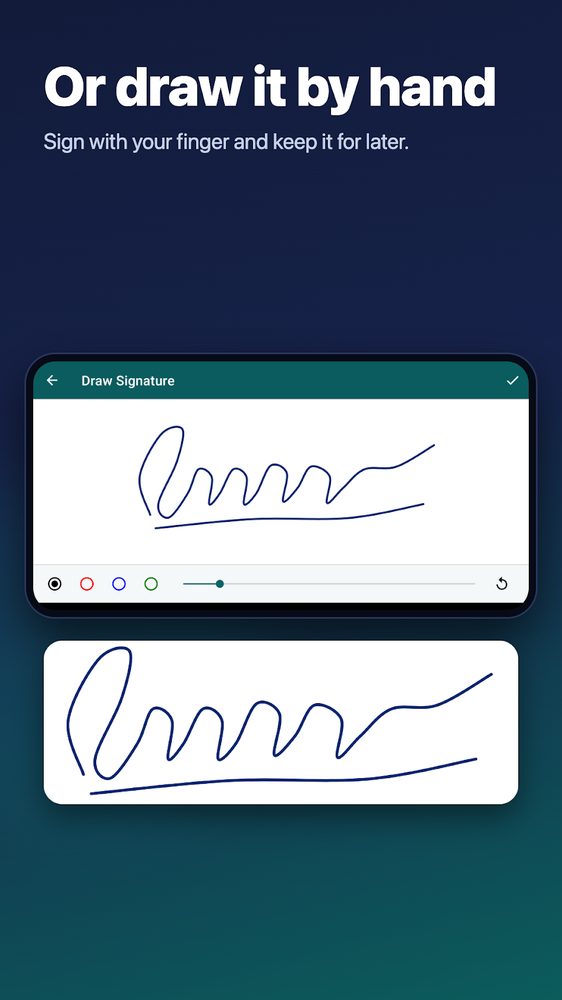
- Drawn signature: write with your finger, save the mark and place it on the page. We recommend this when you want a familiar handwritten appearance. Its shape alone does not turn it into a verified identity.
- Certificate-based digital signature: use a signing process involving cryptographic keys and a certificate. The European Commission’s guidance updated in 2026 explains how certificates and keys support advanced signatures. This is more than placing an image.
The technical purpose is clear in NIST’s 2024 digital-signature standard:
“Digital signatures are used to detect unauthorized modifications to data and to authenticate the identity of the signatory.”
— National Institute of Standards and Technology, Stateless Hash-Based Digital Signature Standard
This explains the distinction; it does not claim PDF Sign Pro implements that standard. If an organization requests a certificate, a validated signature or a particular signing portal, ask which service and format it accepts.
When is a typed or drawn signature enough?
This is general information, not legal advice. The document, jurisdiction, parties and signing process matter. Treat the following legal principles as reasons to ask better questions, not a guarantee that any marked PDF is enforceable.
What does the US ESIGN Act establish?
The ESIGN Act’s general rule, in the official 2024 United States Code edition, prevents rejecting covered signatures and contracts solely because of their electronic form. Its wording includes:
“may not be denied legal effect, validity, or enforceability solely because it is in electronic form”
— U.S. Government Publishing Office, United States Code, ESIGN general rule
The same provision preserves other legal requirements, generally does not force people to accept electronic signatures, and sets conditions for certain electronic consumer disclosures. It also addresses retaining and accurately reproducing records. Our recommendation: confirm acceptance and keep the document you actually sent, rather than assuming that an electronic mark answers every compliance question.
What does UETA add?
For a concrete state example of Uniform Electronic Transactions rules, Pennsylvania’s official statute, checked in 2026, addresses agreement to transact electronically and attribution. It states:
“An electronic record or electronic signature is attributable to a person if it was the act of the person.”
— Pennsylvania General Assembly, Electronic Transactions Act, Uniform Electronic Transactions
The same chapter makes context and surrounding circumstances relevant. Do not treat this state example as a nationwide checklist. Our practical recommendation is to retain the request, your response and the final attachment together, so the surrounding agreement is easier to understand later.
How does EU eIDAS distinguish signatures?
The European Commission’s explanation, updated in 2026, separates legal assurance levels:
“The eIDAS Regulation defines three levels of electronic signature: 'simple' electronic signature, advanced electronic signature and qualified electronic signature.”
— European Commission, What is eSignature
Advanced signatures add requirements concerning identity, control and detection of subsequent changes. Qualified signatures add a qualified certificate and qualified creation device. The 2024 consolidated eIDAS text states:
“A qualified electronic signature shall have the equivalent legal effect of a handwritten signature.”
— European Union, EUR-Lex, eIDAS legal effects of electronic signatures
That text also protects electronic signatures against rejection solely for being electronic or non-qualified. It does not make a drawn image a qualified signature. If a recipient specifies qualified signing, use its accepted qualified-signature route.
What PDF Sign Pro does and does not do
The Google Play listing, checked in 2026, confirms typed signatures with handwriting fonts, hand-drawn signatures, reusable saved signatures, and PDF placement with dragging and resizing. The app also supports signing photos. Our source review confirms the local create, place, save and share workflow described here.
PDF Sign Pro adds visible signature artwork to documents. It does not provide a certificate-signing or qualified-signature workflow, and we do not present it as identity verification, notarization or a managed signing service. A saved signature image is reusable artwork, not proof that the named person approved every document containing it.
Our in-app terms put the responsibility plainly: you are responsible for how signed documents are used and for checking the legal validity of an electronic signature in your country. Only sign documents you have the right to sign. Source review also shows that encrypted PDFs are exported as flattened, unencrypted copies; do not assume the saved file retains the original password protection.
The Play listing describes an ad-supported app with subscription extras. Check the current store offer and in-app access information before relying on a particular style or repeated placements. We make no price, trial or unlimited-free-use promise here.
Who is this workflow for?
We recommend PDF Sign Pro for someone who already has a document and needs to return a visible signature using an accepted method. For example, imagine a coordinator emails a form and explicitly accepts a typed or drawn signature returned as a PDF. The useful job is then placing a legible mark on the right line and checking the final attachment.
For a document with disputed identity, formal witnessing requirements or a specified certificate process, our recommendation changes: start with the recipient’s instructions. A managed signing service may be more appropriate when the requested workflow includes invitations, identity checks or a recorded signing sequence. Evaluate those capabilities directly instead of assuming every product called a PDF signer supplies them.
You can find PDF Sign Pro’s app overview or browse our apps and community tools for context.
How do you get started in 3 steps?
- Create and save your signature. Open the typed-signature tool, enter your name and choose a style, or use the drawing tool and sign with your finger. Keep the mark readable. For a typed signature, save the image; for a drawn signature, save it to your signature collection.
- Open the document and place the mark. Open the PDF signing tool and select your file. Choose Add signature, then your saved signature or gallery image. Drag it onto the intended line and resize it with the corner handle. Navigate to other pages as needed, checking any applicable feature-access limits.
- Save, inspect and share the result. Save the signed copy, open it and inspect every page you changed. Check the name, position, document contents and destination before sharing. Keep the original separately and retain the final PDF you sent.
These steps follow the app’s guide and signing screen, cross-checked against the Play feature description checked in 2026. We recommend starting with a non-sensitive sample file to learn placement before handling an important document.
If the exported result looks wrong, stop before sending. Reopen the original and inspect the relevant page rather than adding more marks to an uncertain copy. Ask the sender for a suitable document or its preferred signing process if you cannot produce a clear result.
Real examples
These are illustrative situations with made-up names, built only from screens and behaviour we checked in the app.
Minh signs a 3-page service agreement from his phone
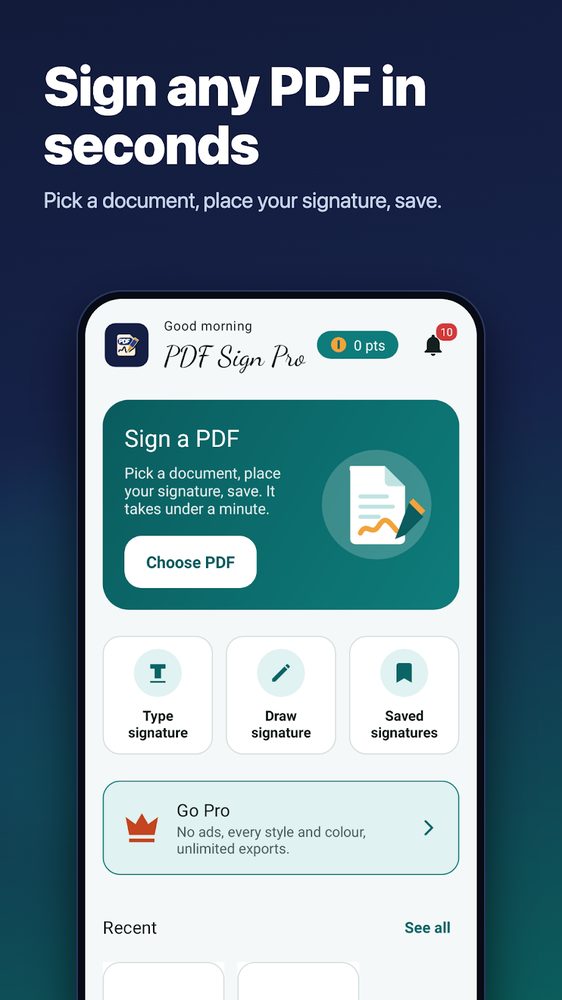
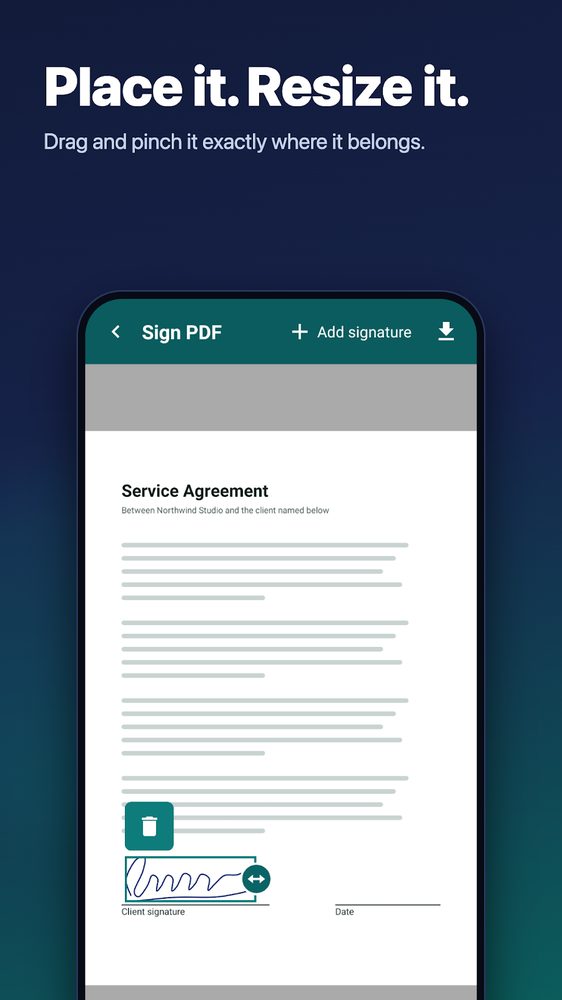
Minh receives “Service Agreement” from Northwind Studio as an email attachment and the studio accepts a visible signature on the “Client signature” line of page 3. He opens PDF Sign Pro and taps Choose PDF on the home card (first screenshot), then picks the downloaded file. He swipes or taps the next-page arrow until the badge reads page 3 of 3, taps Add signature in the top bar and chooses a signature he saved earlier. He drags it onto the line, then pulls the round resize handle until it fits above the text (second screenshot). Tapping the download icon asks for a file name; he keeps a name such as “service-agreement-signed”. The saved dialog offers Share and Open, so he opens the copy, checks page 3 and shares it. The original file is untouched.
Alex types a signature because drawing on a small screen is awkward
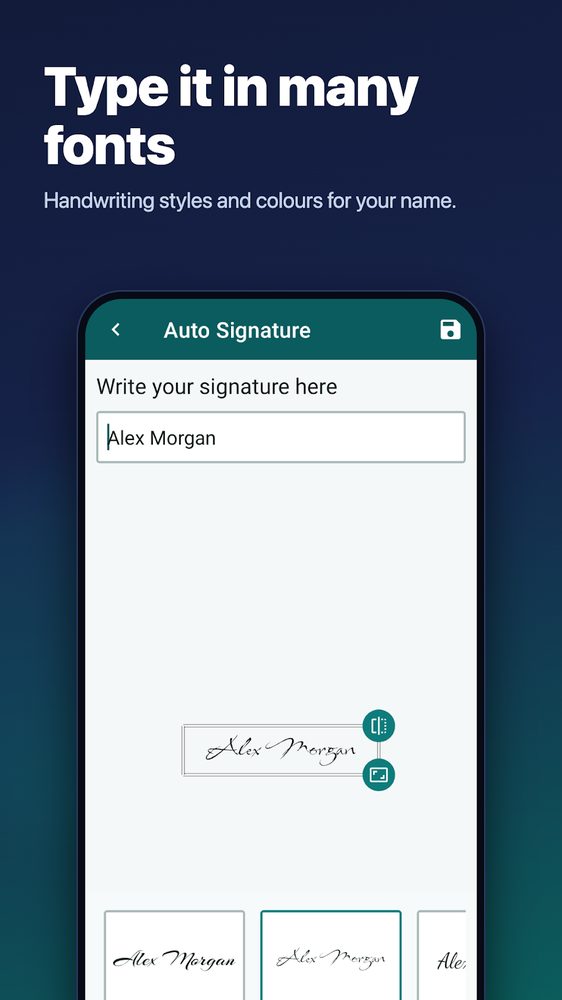
Alex Morgan needs to return a 12-page tenancy form signed on the last page. From home, Alex taps Type signature, types “Alex Morgan” in the “Write your signature here” field and watches the preview change as he picks one of the handwriting-style cards below it (third screenshot). He saves it with the disk icon, then opens Choose PDF, goes to page 12 with the next-page arrow, adds the saved signature and resizes it to sit on the signature line. Saving and sharing follow the same steps as above. If he later wants a second placement on another page, check the in-app unlock screen first, because some options are gated.
Dr. Hana draws a signature once and reuses it
Dr. Hana signs delivery receipts several times a week. On Draw signature the pad opens in landscape (fourth screenshot). She picks the blue ink circle, lowers the thickness slider for a finer line, signs with a finger and uses the undo icon once when the first stroke is messy. The tick at the top saves it to Saved signatures. The next day, offline, she opens a receipt, taps Add signature, picks the saved one and places it. If a PDF is password-protected, the app exports a flattened, unencrypted copy instead, so she deletes that copy after sending.
How PDF Sign Pro differs from other apps
We make this app, so read these as checkable specifics rather than a ranking.
- No account, no upload. Cloud e-signature services generally need an account and send the document to a server so they can run invitations and audit trails. PDF Sign Pro has no sign-in and does the stamping on the device. It does declare internet access, which the ads, purchases and Play services use, so offline use covers signing, not every feature.
- Original content stays intact. For an unencrypted PDF, the app appends the signature as an incremental update instead of re-rendering pages, so the original bytes, text and fonts remain. Print-sign-scan or screenshot workflows flatten the page into a picture. Encrypted PDFs are the exception: they are exported as flattened, unencrypted copies.
- Typed, drawn and reusable in one place. You can type a name in handwriting fonts or draw with four ink colours and an adjustable thickness, save either, and reuse it on any file. It places the mark with drag and resize on the page; it does not fill form fields or edit existing text.
- Ads and Pro are visible up front. The home screen shows a Go Pro card (no ads, every style and colour, unlimited exports), and an interstitial ad can appear after export. Some styles and extras are gated. We do not promise unlimited free use.
- Small permission footprint. Files come in through the system file picker, and the manifest declares internet, network state, notifications, boot-complete and vibrate, not storage access.
When to pick something else: choose a managed e-signature service when you need several signers, invitations, an audit trail or identity checks; a certificate-based tool when the recipient requires a digital signature; and a full PDF editor when you must change existing text or fill form fields.
What does offline privacy mean here?
The Play listing checked in 2026 says signing works offline, requires no account and does not upload documents or signatures to the cloud. The app’s privacy text and local file-storage code support that description. This is about the signing workflow, not a promise that installing, purchasing or sending a file works without connectivity.
Our recommendation: download the document first, keep control of your phone and use the recipient’s agreed delivery channel. Once you choose an email or cloud app to share the result, check that service’s handling separately. Avoid sending a reusable signature image when the recipient only needs the completed document.
Offline processing does not settle retention or access decisions for you. Decide where the final copy belongs, who should receive it and whether your organization permits the device and sharing method. For broader app work, see our development services; for feedback about this guide, contact NabiGame.
FAQ
Can I sign a PDF on Android without printing it?
Yes: PDF Sign Pro lets you create a signature, place it on a PDF and save a copy. Confirm that the recipient accepts this method before sending it.
Is a typed signature automatically invalid?
No: electronic form alone is not a reason to reject a covered signature under the legal rules discussed above. Acceptance, attribution and applicable document requirements still matter; the font does not decide validity.
Does drawing my signature create a digital certificate?
No. Drawing produces a visible mark; certificate-based signing involves a separate cryptographic process. PDF Sign Pro does not offer that certificate workflow.
Can I sign offline without creating an account?
The app supports offline signing without an account, as its listing and source confirm. Have the file available locally first, and plan separately for how you will send the saved result.
Should I use it when qualified signing is required?
No: use the qualified-signature service or process the recipient accepts. PDF Sign Pro’s visible signature placement does not meet that requirement by itself.
Sources
- PDF Sign Pro on Google Play — listing checked in 2026.
- NIST: Stateless Hash-Based Digital Signature Standard — published in 2024.
- ESIGN general rule, official United States Code — 2024 edition.
- Pennsylvania: Uniform Electronic Transactions chapter — checked in 2026.
- European Commission: What is eSignature — updated in 2026.
- EUR-Lex: consolidated eIDAS regulation — 2024 consolidation.
Comments
Loading comments…