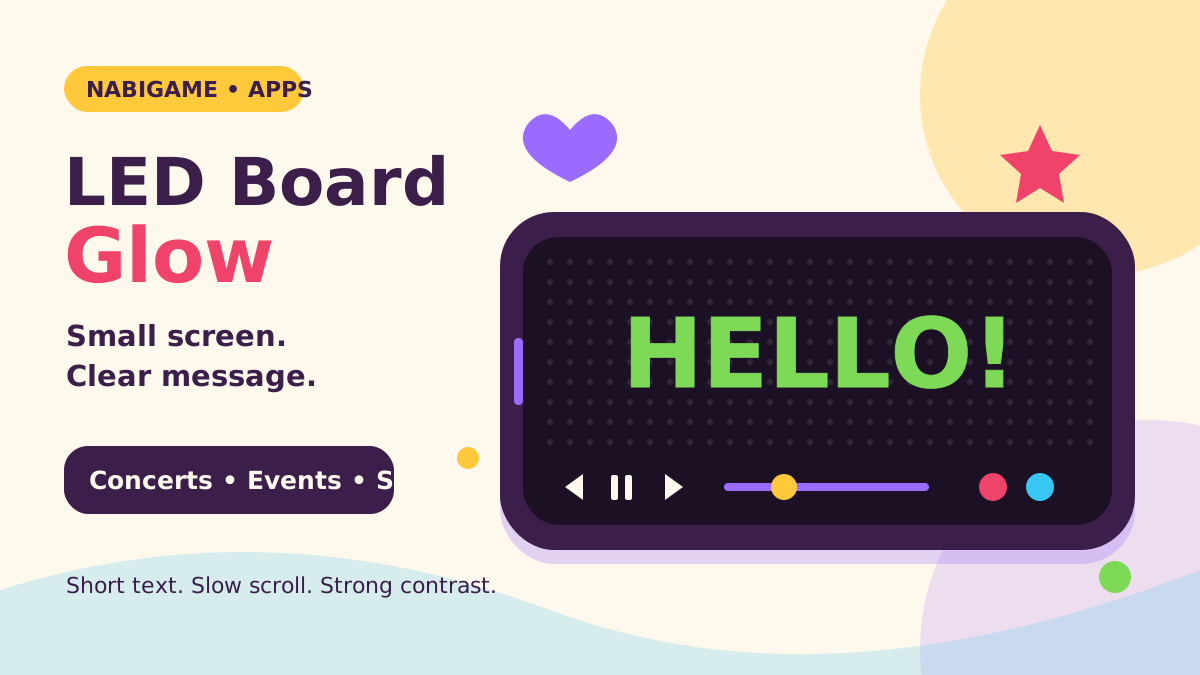
We make LED Board Glow at NabiGame; this guide explains it and the topic, it is not an independent review. LED Board Glow turns your phone into a scrolling LED banner for short messages at concerts, events, queues and pick-up points. For a readable sign, start with brief wording, large text, strong contrast and slow movement, then test it from the intended viewing position.
Key takeaways
- Use a scrolling banner for a brief message to nearby people; choose a stationary message when immediate recognition matters.
- Set wording, text size and contrast before adding decorative effects.
- Adjust phone brightness separately from the app’s LED appearance controls.
- Offline banner use does not mean the whole app has no network services.
Who is a scrolling LED banner for?
Our recommendation is to treat a phone banner as a small, temporary sign. It suits someone greeting a friend, supporting a performer or identifying a meeting point. It is less suitable when strangers need to absorb detailed instructions while walking past. Decide what the reader should understand before choosing a neon style.
The Google Play listing, checked in November 2026, describes fullscreen scrolling text and controls for speed, direction, blinking, brightness, dot size and colors. Those controls let you adapt the same message to different situations. They do not guarantee visibility across a crowded venue.
Concerts and celebrations
Try a short cheer such as “GO TEAM” or “THANK YOU.” Our rule of thumb is to make the wording understandable before adding motion. Keep the phone where it will not block someone’s view, and check the venue’s rules before displaying a sign. For a quiet performance, leave audio and blinking off.
Queues and event meeting points
Use “MEET HERE” or “CHECK IN” as an informal cue when you are already authorized to help direct people. Place the important word first. Our recommendation is to use a stationary message if someone must read it while passing, rather than wait for a long sentence to scroll into view.
Pick-up signs
Agree on a short name or meeting phrase beforehand. “MAYA” is easier to fit prominently than a full itinerary, and we recommend leaving booking references and other private details off a public screen. Hold the phone while standing safely at the meeting point. A banner should support an agreed meeting plan, not replace one.
What LED Board Glow does and does not do
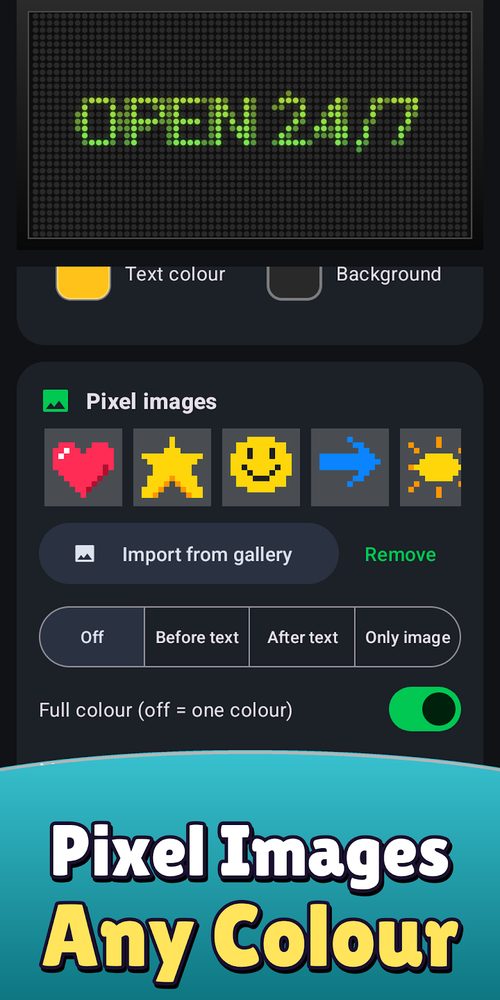
The app’s listing and source confirm editable messages, font selection, text sizing, text and background colors, LED skins, dot styling, glow, scrolling direction, speed and blinking. The source also provides landscape fullscreen playback and tap-to-show controls for pausing, changing size or speed, editing and closing the banner. See the LED Board Glow app entry for its place in our catalog.
Some extras are gated. The inspected source places emoji, imported images, advanced effects and audio playback behind Pro access. The Play listing describes an optional one-time Pro purchase and an ad-supported version. Check the current purchase screen for its exact offer; this guide does not assume every decorative feature is available without unlocking it.
Honest limits: LED Board Glow displays a simulated LED sign on your phone screen. Treat it as a personal message display, not a dedicated outdoor sign, traffic signal or emergency communication system. We do not promise a viewing distance, daylight visibility or battery runtime. Our recommendation is to keep a physical alternative available when the message must remain visible throughout an event.
For choosing a format, we suggest:
- Scrolling phone banner: choose it when you want to change a brief message and use the app’s motion controls.
- Stationary phone message: choose it when the entire phrase fits and the reader should recognize it immediately.
- Paper sign: choose it when keeping your phone available matters more than changing colors or animation.
Real examples
These three walk-throughs use the app's own controls and numbers. The size and speed figures come from the source: text size runs from 0.5 to 2.9 in 0.1 steps (default 1.0, where a letter is one third of the board's height), and the speed slider position maps to a step size, so a smaller internal value means faster scrolling.
Linh's market stall: a sale sign that stays still
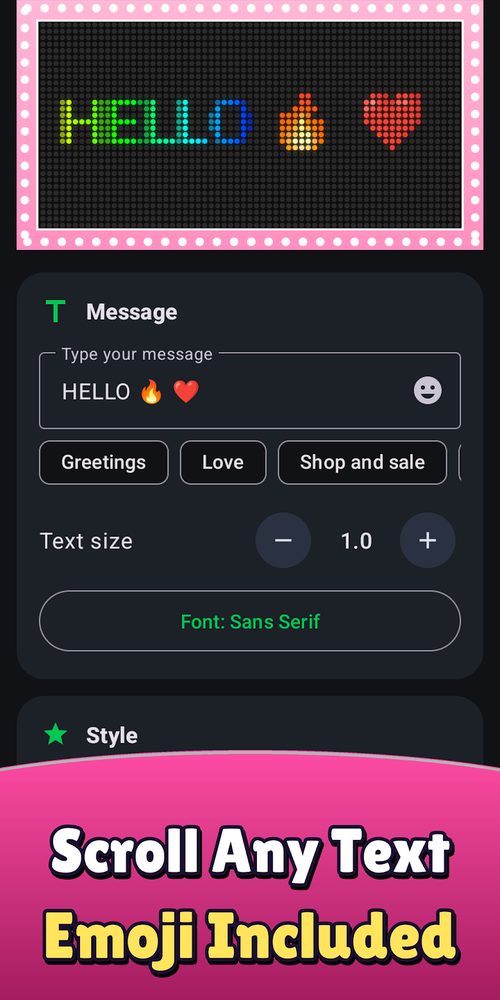
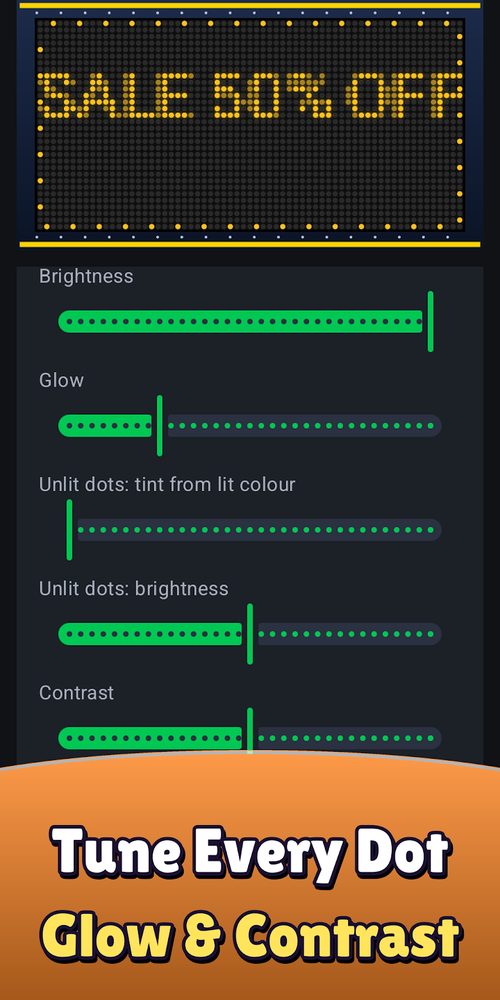
Linh sells shoes and wants a counter sign, not a moving one. (1) In the Text tab she taps the Shop and sale chip group, picks “SALE,” then edits the field to “SALE 50% OFF” (screenshot 4 shows this wording). (2) In the Style tab she picks a skin with amber dots. (3) In Tune she leaves Brightness high and raises Contrast so the dots stand apart from the unlit ones. (4) In Motion she selects Pause, so the whole phrase stays put. (5) She taps Start; the app switches to landscape fullscreen. Outcome: the 12-character phrase fits at the default size 1.0. If it does not fit on her phone, she taps the minus button (screenshot 1, Text size) one step at a time, 1.0 to 0.9 to 0.8, rather than letting it scroll.
Minh at the airport: a name that is readable from a distance
Minh meets a colleague arriving at the terminal. (1) In Text he types “MAYA” only, with no flight number. (2) He presses the plus button ten times to take the size from 1.0 to 2.0, so each letter is two thirds of the board's height. (3) In Style he picks a skin with a dark background and bright dots. (4) In Motion he chooses Pause. (5) In More he leaves Keep screen on enabled (the setting is read by the playback screen) and taps Start. (6) He holds the phone at chest height and has the colleague read it from the far side of the hall. Outcome: a four-letter word at size 2.0 is large enough that you can judge it by looking, instead of guessing. When Minh is done he closes playback, which returns the phone to its normal screen timeout.
Hana at a birthday: scrolling, slower than default, with emoji
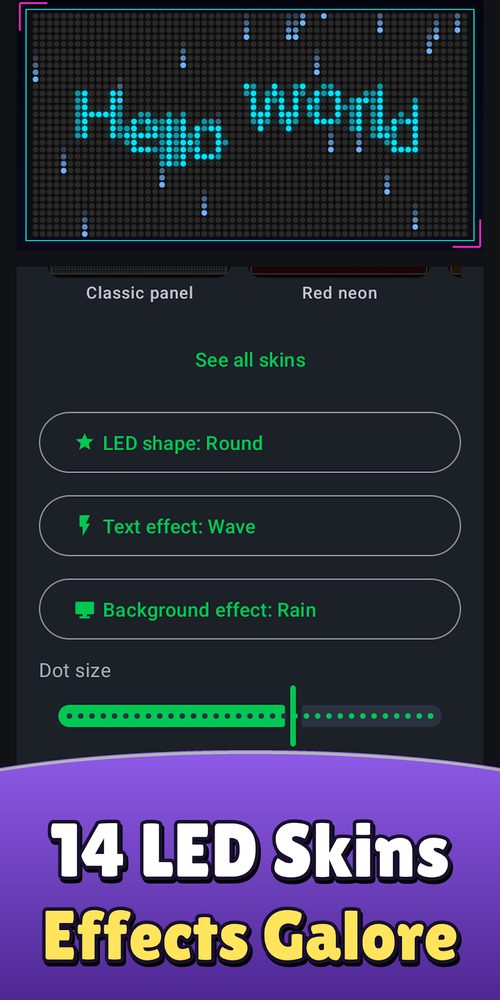
Hana wants “HAPPY BIRTHDAY LINH” plus a heart for a surprise. (1) In Text she types the words and adds the heart with the emoji button (screenshot 1 shows emoji in the field). (2) In Style she sets Text effect to Wave (a free effect, screenshot 2). (3) In Motion she keeps the direction on left-to-right and moves the speed slider from the default position 50 to 30. By the source formula that changes the internal speed value from 80 to 100, so each step is 80 percent of the default distance (a 20 percent slower scroll). (4) She taps Start. Outcome: the guests have more time to read. One catch: the emoji and some effects are Pro. Without Pro, playback removes the emoji and any Pro effect from what is drawn, so the words show but the heart does not, unless she unlocks Pro or earns the daily pass (five rewarded ads, valid until midnight).
How LED Board Glow differs from other apps
We make this app, so read this as a list of checkable specifics rather than a ranking. We have not audited every competing LED app, so we compare against categories and tell you what to verify.
- No account to start. The onboarding and banner flow have no sign-in; settings are saved on the device with local preferences. Some alternatives ask you to register or sync online; check the one you are considering.
- Declared Android permissions are minimal. The manifest lists Internet, network state and Vibrate, and nothing for camera, microphone, contacts or location. The Internet permission is there for ads, analytics and purchases, not for sending your messages. Picking an image uses the gallery picker.
- The banner renders locally. Text, skins and effects are drawn on the phone, so a message you typed works offline.
- Dot-level controls. Brightness, Glow, Unlit dots tint, Unlit dots brightness, Contrast, Dot size and LED shape are separate sliders (screenshots 2 and 4). A plain scrolling-text or notes app gives you a font size and a color, not a dot grid.
- Free versus Pro is specific. In the source, free includes scrolling, pause, RTL and LTR directions, colors, skins, size and speed, plus the Wave, Rainbow, Gradient, Typewriter and Fade text effects and Stars and Snow backgrounds. Pro adds emoji, imported images, audio, eight further text effects and four background effects such as Rain. A daily pass of five rewarded ads unlocks Pro features until midnight, so you can try them without paying.
- Presets for short messages. Chips such as Greetings, Love and Shop and sale fill the text field with ready phrases you can edit.
When to pick something else: if you need a sign that is readable in direct sunlight across a field, use a printed sign or a dedicated LED display. If you need text that syncs across devices or a shared scheduled playlist, this app does not offer that. If you only need one large static word, your phone's notes app may be enough.
How do you get started in three steps?
- Write the message. Open the app and enter your wording in the Text tab. Start with the name, cheer or instruction the reader actually needs. Remove introductory phrases and check spelling before adjusting the appearance.
- Choose a readable look. Select a font, enlarge the text and choose contrasting text and background colors. Use the Motion controls to slow the scroll or select Pause. Leave blinking and decorative effects off while you check the basic message.
- Start and test the banner. Tap Start for landscape playback. Tap the display to reveal its controls, then adjust speed or size as needed. Ask someone at the intended viewing position to read it without being told the wording first.
If your tester misses the first word, shorten the message before making the animation faster. If letters look crowded, try a simpler font or less glow. Our suggested acceptance test is practical: can someone identify the message comfortably, without coaching or waiting through repeated attempts?
How do contrast, font size and speed affect readability?
Make the text stand apart from its background
W3C’s contrast guidance, accessed in November 2026, gives a useful starting point:
“Provide sufficient contrast between text and its background.”
— W3C, WAI Contrast (Minimum)
For a banner, our recommendation is bright, plain lettering against a dark, quiet background. Avoid choosing colors only because they look different in hue. Check whether the letter shapes still stand out when you step away. The W3C document concerns accessibility guidance; citing it is not a claim that this app has passed an accessibility audit.
Try a plain font before an expressive one. Increase text size until the wording feels prominent, then check whether the visible portion remains meaningful. If you keep shrinking letters to squeeze in a sentence, rewrite the sentence. For a greeting sign, the name usually deserves more space than the greeting.
Give the reader time
W3C’s motion guidance, accessed in November 2026, explains why animation deserves restraint:
“Some people with cognitive disabilities and attention deficits are distracted by continuous movement.”
— W3C, WAI Pause, Stop, Hide
Our recommendation is to begin slowly and increase speed only after a real reading test. Avoid combining scrolling, blinking and changing backgrounds for a practical sign. Use Pause when the full message fits. If pausing leaves part of a long message outside the display, shorten the wording or resume a slower scroll.
Do the test under the lighting you expect to use. Ask the reader to report the words, not whether the effect looks attractive. A playful look can be appropriate for a celebration, but our preference is to establish readability first and add decoration afterward.
How should you manage brightness and battery?
The source uses the app’s Brightness setting in its LED rendering calculations. Treat that as an appearance control; adjust your phone’s display brightness in Android settings separately. Making the drawn dots look brighter is not a promise that the physical display will become easier to see outdoors.
Google’s Android battery guidance, accessed in November 2026, recommends:
“Reduce screen brightness.”
— Google, Android Help
Our recommendation is to use the lowest phone brightness that keeps the message comfortably readable in its actual surroundings. Recheck it when moving between indoor and outdoor areas. Do not assume the setting that looks pleasant in your room is suitable beside a bright entrance.
The app includes Keep screen on during playback. Android’s developer guidance, updated in November 2026, states:
“Keeping the device's screen on can drain the battery quickly.”
— Google, Android Developers
Enable that option when you need an uninterrupted display, then close playback when the message has served its purpose. Pausing movement does not mean you have switched the screen off. Before leaving, rehearse with your own phone and preserve enough charge for communication and travel afterward.
Google’s Pixel heat guidance, accessed in November 2026, adds:
“To help prevent your phone from getting too hot, keep it out of direct sunlight.”
— Google, Pixel Phone Help
Follow your device manufacturer’s guidance if the phone becomes hot. We do not provide a universal runtime estimate: this guide has no measured battery benchmark for LED Board Glow.
Does offline use mean private use?
The Play listing, checked in November 2026, says the app needs no internet for its banner use. The inspected source saves message settings through local preferences and has no app-account sign-in in its onboarding or banner flow. You can prepare a message without creating a separate LED Board Glow account.
However, the source also initializes shared services for advertising, analytics and purchases. Local message settings and offline rendering do not establish that the entire app makes no network requests or collects no data. We therefore make no blanket zero-collection promise here. Review the current Play Data safety information and privacy policy before deciding whether the app fits your expectations.
We recommend testing your intended banner without connectivity before relying on it at a busy event. For more utilities, browse our apps and community tools. For a tailored display project, explore our services, or contact us with the setting and message you want to support.
FAQ
Can I use LED Board Glow at a concert?
Yes, a short cheer is a use described by the Play listing. Check venue rules, respect nearby viewers and test the message at the distance you expect. We recommend leaving blinking off for a practical sign.
Can I stop the text from scrolling?
The source provides a Pause direction option and a playback pause control. Use a short message that fits the display when you want a stationary sign. Pausing a long scroll does not automatically make every word visible.
Does LED Board Glow work offline?
The Play listing says internet is not needed, and the banner renderer and saved settings are local. Ads and purchase-related services are separate from that core use. Test your chosen setup offline before the event.
Is everything available without Pro?
No. The inspected source gates extras including emoji, imported images, advanced effects and audio behind Pro access. Check the app’s current offer before planning a sign around those extras.
What is the best brightness setting?
We recommend the lowest phone display brightness that your intended reader can comfortably read. Adjust it in the actual lighting and distinguish it from the app’s LED appearance setting. No universal brightness or battery-runtime figure is established here.
Comments
Loading comments…