
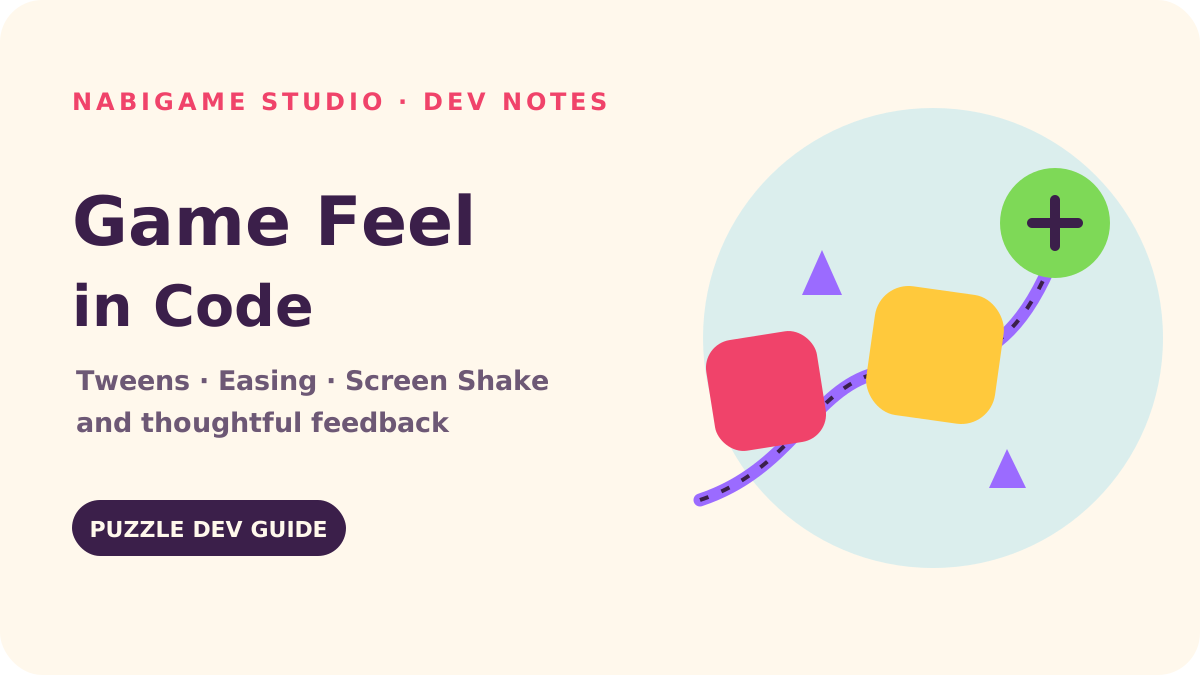
Good game feel comes from making a player’s action readable: the board responds at the right moment, moves with a clear rhythm, and settles without hiding what changed. For a web or mobile puzzle game, a small set of time-based tweens, restrained squash, optional camera shake, and short hit-stop can make a match or merge feel deliberate while keeping input and game state predictable.
Key takeaways
- Animate presentation from timestamps; keep the rules and board state authoritative and immediate.
- Use easing to shape the feeling of time, not to disguise unclear feedback.
- Let screen shake decay smoothly, cap its displacement, and turn it off for reduced motion.
- Reserve hit-stop for rare high-value events; never freeze menus, accessibility controls, or essential feedback.
- Test reduced motion as a complete alternate presentation, not a missing-effects setting.
What does “game feel” mean in a puzzle game?
Game feel is the sensory response between an input and its understood result. In a match puzzle, the player taps a tile, sees a selection, commits a move, then needs to understand which pieces matched, where the gap is, and what the next board state is. Animation helps direct attention through those stages. The goal is not maximum movement: it is an unmistakable cause and effect.
Separate the model from the view. Resolve a valid move in game logic first, then send presentation events such as tileSelected, matchResolved, or comboReached. Each event can start effects without making the board wait for decorative motion. If a cascade lasts longer than expected or the tab loses focus, the model still knows the correct score and layout. This also helps reuse a puzzle across Canvas, WebGL, DOM UI, and native wrappers.
That boundary is especially useful in casual games with repeated actions. A satisfying response should confirm a good move, but a long flourish after every swap becomes friction. Our recommendation is to make the first confirmation quick, the meaningful result more expressive, and routine cleanup quiet. See our puzzle game design notes for the wider feedback loop.
“With scroll timelines, the animation doesn’t progress with time — it progresses based on the user’s scroll.”
— WebKit, WebKit Blog
Why is easing more important than adding more animation?
A tween interpolates a property from a start value to an end value over elapsed time. Linear easing changes at a constant rate; cubic ease-out covers distance quickly and settles gently; back easing overshoots and returns. These curves give identical endpoints different intent. A button press can compress quickly and spring back; a tile landing can approach fast and ease into rest.
For normalized progress t between zero and one, linear is t. Cubic ease-out is 1 - (1 - t)^3; cubic ease-in-out uses 4t^3 in the first half and 1 - (-2t + 2)^3 / 2 in the second. Clamp progress before applying a curve. Avoid repeatedly easing an already eased value, which causes the animation to drift or stall.
The current web graphics ecosystem reinforces a practical split: browser-native motion is expanding for page transitions and scroll-linked effects, while game objects still benefit from a game loop that coordinates many properties with gameplay events. WebKit’s “A guide to Scroll-driven Animations with just CSS” describes timelines driven by scroll position. Chrome’s “What’s new in view transitions (2025 update)” tracks evolving document transition support. Those suit site transitions; board motion is usually clearer when driven by game time.
Engine releases also show how active the tooling space remains. PixiJS’s “PixiJS Update - v8.16.0” discusses extending 2D workflows toward 3D, while Phaser’s release notes list Phaser 4.0 in April 2026. They inform renderer choices, but gameplay timing should remain framework independent.
A tiny time-based tween
This minimal helper animates numeric properties on a plain object. Its update method receives elapsed milliseconds from the game loop. It handles one tween at a time; production systems may add cancellation, pooling, conflict rules, and lifecycle ownership. Using timestamps rather than “add a little each frame” keeps duration consistent when refresh rates vary.
const easeOutCubic = t => 1 - (1 - t) ** 3;

function tween(target, key, to, duration, update) {
  const from = target[key];
  let elapsed = 0;
  return dt => {
    elapsed = Math.min(elapsed + dt, duration);
    const t = duration <= 0 ? 1 : elapsed / duration;
    target[key] = from + (to - from) * easeOutCubic(t);
    update();
    return t < 1;
  };
}

// In your frame loop, dt is milliseconds since the last frame.
const moving = tween(sprite, 'scale', 1.12, 110, render);
function frame(dt) {
  if (moving(dt)) requestAnimationFrame(() => frame(16));
}
The final loop line above is only a sketch of integration: a real game loop should calculate dt from the callback timestamp and update all active tweens from the same clock. Do not schedule a separate animation frame per tween. In a renderer, write the interpolated value to its transform once per frame. For framework-specific tween APIs, consult the installed version’s documentation; the equations and event boundaries remain the same.
“Interactive experiences increasingly blend 2D and 3D: UI over 3D scenes, 3D elements embedded in 2D worlds, and large numbers of simple 3D objects rendered at scale.”
— PixiJS, PixiJS Blog
How can squash and stretch clarify a match?
Squash and stretch is a brief deformation around an object’s anchor. A tile might widen slightly as it is selected, flatten on landing, then recover. Keep its center visually stable by scaling around its center anchor. If the scale is applied from a corner, the tile appears to slide and the player may misread which cell was affected.
Prefer subtle, short-lived shapes over constant bounce. A good sequence is: compress at contact, expand a touch, then return to the exact rest scale. A chain reaction can use a tiny stagger by row or column to clarify order, but the next input should not be blocked just because the animation is still playing. If tiles move between grid cells, calculate their logical destination immediately, and render an interpolated path to it.
Match feedback has layers. Highlight the selected piece on pointer-down, confirm the swap when accepted, then signal the match with a brighter flash, particle burst, or scale pulse. Use distinct cues for invalid moves: a restrained nudge plus a sound or color change can communicate “not accepted” without shaking the whole screen. This pattern applies to Blot Up Ink’s color puzzle and Juice Fruit’s merge loop as design examples: feedback should match the meaning of the action.
Screen shake: use trauma, then decay it
Screen shake is a camera effect, so it should communicate an event that changes the stakes: a large combo, a heavy landing, or a rare failure. Perpetual random offsets feel noisy and make grid alignment harder. A common approach accumulates “trauma” between zero and one, decays it over time, then squares the value so small events stay small. Sample a fresh bounded offset each frame and apply it to the camera, never to the stored positions of every tile.
let trauma = 0;
const maxOffset = 7;

function addShake(amount) {
  trauma = Math.min(1, trauma + amount);
}

function updateShake(dt, camera, reducedMotion) {
  trauma = Math.max(0, trauma - dt / 450);
  const power = reducedMotion ? 0 : trauma * trauma;
  camera.x = (Math.random() * 2 - 1) * maxOffset * power;
  camera.y = (Math.random() * 2 - 1) * maxOffset * power;
}
Here camera coordinates represent an offset from a saved base position; production code should restore that base every frame before applying shake. Add shake only when the game is active, and clear it when pausing, opening a modal, or changing scenes. On a puzzle grid, a few pixels may be enough. A good rule is that the board’s cell boundaries remain easy to track at a glance. Pair shake with a non-motion cue such as sound, particles, color, or a score change.
When does hit-stop help?
Hit-stop briefly pauses the game simulation at a decisive moment, creating contrast before motion resumes. It can make a major combo or a boss-like obstacle break feel weighty. In a casual puzzle, the same technique can feel like a missed tap if applied to every three-tile match. Use it selectively, keep the pause short, and keep UI response and input feedback alive.
Implement hit-stop with a simulation clock scale rather than sleeping the browser thread. Continue rendering, audio policy, accessibility input, and timers that should not stop. A separate presentation clock can advance a small flash or label while the board simulation is held. Avoid extending the pause each time several events fire in the same cascade; combine or cap simultaneous requests. The player should experience emphasis, not latency.
Make UI counters feel responsive
A score counter is a high-value feedback surface because it translates a move into progress. Update the actual score immediately, then animate a display value toward it. For a small increment, count smoothly; for a large cascade, use a short roll or a single pop instead of stepping through every integer. Keep the final value readable, avoid rapid flashing, and do not let decorative digits obscure the score target or remaining moves.
Give each counter one clear owner. If the model says 240 points and a presentation counter is midway from 180, the model remains authoritative. When another scoring event arrives, retarget from the currently shown value or finish the old display tween cleanly. For currencies and remaining moves, prefer direct, calm changes over playful counting; those values support decisions and should stay scannable. UI elements built with CSS can use a simple transform or opacity transition, but canvas text should be coordinated with the game loop.
Current engine work continues to improve how developers compose visual scenes and interface pieces. For example, the PixiJS update named above covers renderer and text changes, and Phaser’s current release history is a useful version-specific reference. Our advice is to choose the smallest animation system that gives the team control over interruption, reduced motion, and synchronization with model events. See our engine comparison and performance budgeting guide when deciding where effects belong.
“Indicates that a user has enabled the setting on their device for reduced motion.”
— MDN, MDN Web Docs
Reduced motion is a design mode
Respect the operating system’s prefers-reduced-motion preference, and offer an in-game setting as well. MDN explains that the reduce value signals a user-enabled reduced-motion setting. That preference should remove camera shake, rapid zooms, repeated pulses, and large parallax travel. It need not remove confirmation: show a stable highlight, outline, brief color change, icon, or text cue instead.
Read the media query once and subscribe to changes so a user can alter the system setting while the game is open. Keep the game’s own setting available for users who want less movement regardless of platform preference. Make the two controls predictable: “reduce motion” can always override an effect request, while the default setting follows the device. Ensure that reduced motion still shows selection, success, failure, score changes, and progress distinctly.
const motionQuery = matchMedia('(prefers-reduced-motion: reduce)');
let reduceMotion = motionQuery.matches;

motionQuery.addEventListener('change', event => {
  reduceMotion = event.matches || userChoseReduceMotion;
});

function celebrateMatch(camera, tile) {
  tile.flash = true; // stable visual confirmation
  if (!reduceMotion) {
    addShake(0.22);
    startScalePulse(tile, 1.08, 120);
  }
}
Initialize userChoseReduceMotion from the saved preference and update it from the UI control. CSS-based menus can also use a media rule to remove nonessential transitions. Check a full playthrough: can someone still identify selection, acceptance, and score without movement?
“After years of development, Phaser 4 is here.”
— Phaser, Phaser Releases
A practical tuning checklist
- Map the action: list input, accepted/rejected result, board update, score update, and next available input.
- Choose one primary cue: use scale, color, sound, particles, or camera movement to carry the main message.
- Choose an easing curve: linear for steady progress, ease-out for settling, and overshoot only when playful intent suits the game.
- Keep model timing separate: never make a rule wait for a decorative tween to finish.
- Cap and interrupt: limit camera displacement, cancel stale tweens, and reset offsets on pause or scene change.
- Test touch devices: check small screens, high refresh rates, reduced motion, and rapid repeated taps.
- Remove effects one at a time: if meaning disappears when an effect is off, add a stable cue that communicates the same state.
Game feel improves through deliberate timing and clear signals. Start with a responsive selection, one well-shaped settle, and a score that updates honestly; add shake or hit-stop only where the event earns emphasis. If you are building a web or mobile puzzle and want to discuss a small prototype, contact NabiGame Studio. We are an indie team in Da Nang making casual puzzle and arcade games since 2016; our services page outlines ways we collaborate.
FAQ
Should puzzle games use screen shake?
Use it sparingly for high-impact events such as a major combo or a powerful obstacle break. Keep displacement small, cap overlapping requests, and offer a reduced-motion option with another clear confirmation cue.
Which easing function should I use for a tile landing?
Ease-out is a useful starting point because it moves quickly and settles gently. Try a short squash at contact, then return exactly to the resting transform so the grid stays stable.
Does hit-stop pause the whole browser game?
No. Hold or scale the gameplay simulation clock while continuing to render and process important UI and accessibility input. Keep the pause brief and reserve it for events that benefit from emphasis.
How do I support prefers-reduced-motion in canvas?
Read the media query with matchMedia and use it to skip or reduce camera movement, zooms, and repeated pulses. Keep stable highlights, color, labels, or sounds so that game state remains clear.
Should animations block the next move?
Usually not for routine feedback. Update the game model immediately and let the presentation animate toward the new state; block input only when accepting another action would create genuine ambiguity.
Comments
Loading comments…