
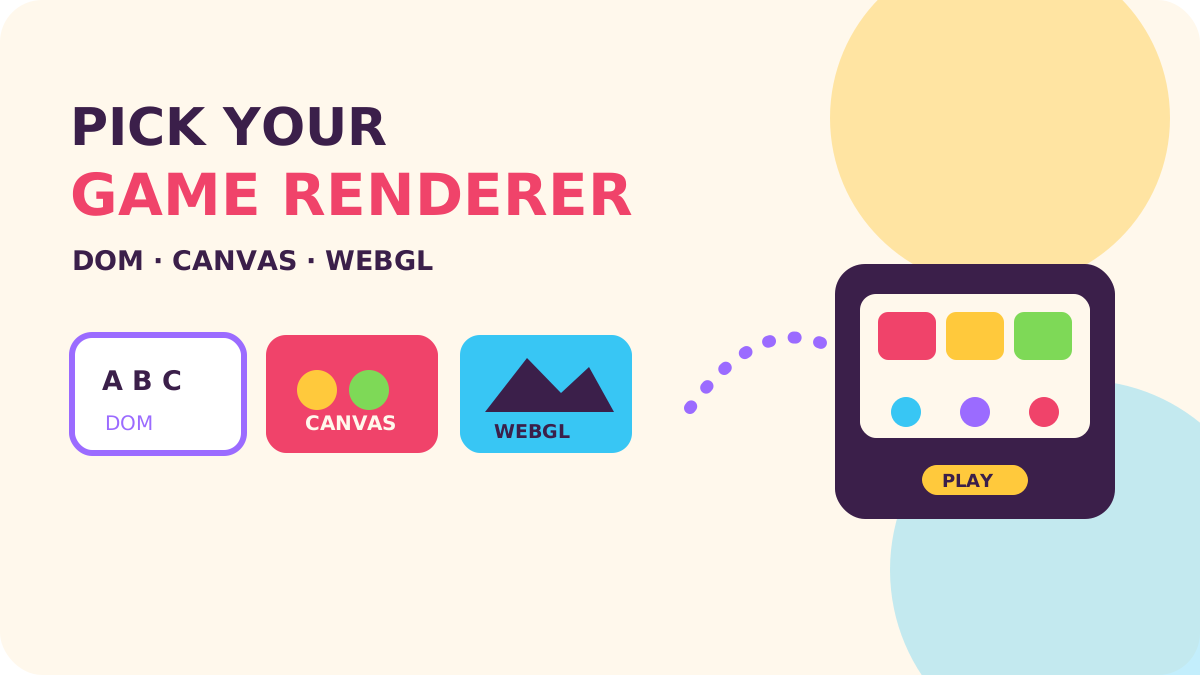
Choose DOM and CSS for games whose playfield is mostly readable, selectable interface; choose Canvas 2D when you need a single custom 2D surface with modest scene complexity; choose WebGL through a library such as PixiJS when sprites, effects, and continuous animation make a retained GPU scene useful. Many casual games benefit from a hybrid: let the renderer own the moving playfield and let HTML own menus, settings, instructions, and accessible controls.
Key takeaways
- Start with the simplest renderer that can express the playfield and interaction model.
- DOM is a strong fit for cards, word tiles, turn based boards, and interfaces where text selection and accessibility matter.
- Canvas 2D offers direct drawing control, but it does not provide a scene graph, automatic hit testing, or semantic access to drawn objects.
- WebGL and a 2D library can make sprite batching and effects easier to manage, at the cost of more engine and device testing.
- Benchmark the same representative gameplay on target devices, including text, input, resize, and effects.
Why is renderer choice back in the conversation?
Two recent developments make the old DOM-versus-canvas boundary more interesting. PixiJS announced its v8.16.0 release in February 2026 with an experimental Canvas renderer; its “PixiJS Update - June” covered v8.18.0 and v8.19.0, including live HTML-in-Canvas textures. Chrome’s May 2026 article, “Introducing the HTML-in-Canvas API origin trial”, described drawing DOM content into canvas-based scenes. Chrome’s September 2026 “HTML-in-Canvas updates: Iterating toward a better Web API” confirms the feature remains experimental. These are reasons to revisit assumptions, not to put experimental APIs on a production critical path.
“PixiJS v8.16.0 brings two headline features: an experimental Canvas renderer for environments without WebGL/WebGPU, and tagged text for inline styling without multiple text objects.”
— PixiJS, PixiJS Update - v8.16.0
The practical question is workload shaped: is the player reading and choosing among elements, or watching continuous animation? Renderer decisions become expensive to reverse once UI, hit testing, and tooling depend on them, so write down the interaction before choosing.
When is DOM and CSS enough?
DOM is often the best game renderer when the board is a structured interface. A word search can be a grid of buttons or spans; a card game can use HTML elements transformed with CSS; a turn based board can update a small number of cells in response to moves. The browser already handles text shaping, wrapping, focus, pointer events, zoom, and layout. You can use normal labels and controls instead of rebuilding them in a custom input system.
Players may need larger text, keyboard navigation, screen readers, selection, translation, or browser zoom. DOM gives you a direct route to those behaviors and makes interaction state easier to inspect. In NabiGame’s view, understandable focus and readable instructions are part of game feel.
“The DOM also integrates with essential browser features: accessibility tools, translate, find-in-page, reader mode, extensions, dark mode, browser zoom, and autofill.”
— Chrome for Developers, Introducing the HTML-in-Canvas API origin trial
DOM can become awkward when every piece needs bespoke motion on every frame, when dozens of layered sprites must move independently, or when the visual design depends on blending, clipping, and particles. Large numbers of nodes are not automatically slow, but style recalculation, layout, paint, and compositing can become part of the cost. Profile before assuming the node count is the bottleneck.
A tiny DOM board
A button-based cell has keyboard behavior, focus, and an accessible name without creating a custom hit map. Real games will need to manage grid navigation and announce state changes thoughtfully, but the browser surface is already there.
const board = document.querySelector("#board");
const letters = ["C", "A", "T", "D"];

for (const [index, letter] of letters.entries()) {
  const cell = document.createElement("button");
  cell.type = "button";
  cell.textContent = letter;
  cell.setAttribute("aria-label", `Cell ${index + 1}: ${letter}`);
  cell.addEventListener("click", () => selectCell(index));
  board.append(cell);
}
What does Canvas 2D give you, and where does it stop?
Canvas 2D is an immediate drawing surface: your code issues commands to paint pixels, often by clearing and redrawing the scene. It is a good middle ground for a small custom playfield, a simple arcade loop, a compact board with animated pieces, or a project that benefits from one rendering surface and a small runtime. You control draw order and can keep the drawing logic close to the game state.
The trade is that you build more of the machinery yourself. Canvas does not retain a tree of sprite objects for you, so you need to track positions, draw order, hit areas, animation state, and redraw policy. Text metrics and drawing are available, but each label’s accessibility and interactive meaning need an equivalent semantic representation outside the bitmap. If the game includes a word board, don’t assume that visible letters on canvas are automatically available to assistive technology.
“The canvas element on its own is just a bitmap and does not provide information about any drawn objects.”
Canvas 2D also has no universal scene-complexity threshold where it suddenly fails. Results depend on device, fill area, effects, redraw frequency, text, and browser implementation. Keep static layers cached when appropriate, avoid needlessly repainting unchanged regions, and cap the backing resolution deliberately on high-density screens. MDN’s optimization guide covers techniques such as offscreen rendering and avoiding repeated state changes; they are tools to test against your scene rather than magic switches.
For instance, Word Cross Search suggests a design where actual text, selection, and accessibility can be as important as animated decoration. A DOM board with a canvas background may be a better fit than putting every letter into a bitmap.
When does WebGL make the scene easier?
WebGL makes sense when you are drawing many moving sprites, repeated effects, large animated backgrounds, or layered particles and want a library to manage GPU resources, scene objects, texture atlases, and batching. PixiJS is a common 2D-oriented choice; its API provides a higher-level scene model than managing raw WebGL calls. It can be a good fit for a merge game like Juice Fruit if your design calls for a lively field of independently animated objects.
WebGL is not a promise of speed. A poorly batched scene, large transparent overdraw, excessive filters, or expensive game logic can still miss a frame. GPU context loss, texture memory, scaling, and platform-specific bugs become part of your support plan. A library lowers the amount of rendering infrastructure you write; it does not remove the need to test real phones and browsers.
“This is an early, experimental release.”
— PixiJS, PixiJS Update - v8.16.0
That short warning matters because the new PixiJS Canvas backend is currently experimental and does not cover every feature of its GPU renderers. The same release adds tagged text, which can simplify inline styling in its text objects. Treat these as useful current engine developments, then check the feature coverage and stability of the pinned version your own game uses.
What about accessibility and text?
DOM content naturally participates in browser text behavior: selectable words, translation, find-in-page, focus, and accessibility trees. Canvas and WebGL draw text as pixels or renderer-managed objects, so the game must provide equivalent accessible descriptions, focus management, and input behavior. A fallback paragraph is helpful, but it does not by itself make every interactive canvas object accessible.
Canvas text can be positioned alongside art and transformed as one scene; DOM text benefits from browser shaping, bidirectional layout, font fallback, zoom, and selection. If the text is central to the puzzle, favor real HTML for the letters or provide a synchronized semantic layer. If text is decorative score feedback, rendering it with the scene may be appropriate while keeping essential status in an accessible live region.
“This API lets you draw DOM content directly into a 2D canvas or a WebGL/WebGPU texture while keeping the UI interactable, accessible, and hooked up to your favorite browser features.”
— Chrome for Developers, Introducing the HTML-in-Canvas API origin trial
Chrome’s HTML-in-Canvas experiment is worth following if you need browser-native interface elements inside a canvas composition. Its September 2026 update describes continued origin-trial development through Chrome 160, so do not make a casual game depend on it unless your supported browser set and fallback story are explicit. A straightforward hybrid works today: put the playfield in canvas or WebGL, with ordinary HTML controls and text positioned around it.
How should you compare the options?
- DOM and CSS: Choose for text-heavy boards, cards, menus, forms, and games where accessibility and browser behavior are first-class.
- Canvas 2D: Choose for a compact custom scene with moderate animation when you want direct drawing and can own the scene bookkeeping.
- WebGL with a 2D engine: Choose for a sprite-rich scene with lots of effects or repeated animated objects, and budget for device-specific rendering QA.
- Hybrid: Keep core interactive text and controls in HTML, while a canvas or WebGL layer draws the animated board, background, or effects.
Use a decision checklist before adopting a renderer:
- List the objects that change every frame and the objects that change only after a move.
- Mark which text players must read, select, translate, or navigate with assistive technology.
- Prototype the hardest visual moment, not a quiet title screen: include particles, overlays, and a full board.
- Measure startup, interaction latency, frame consistency, memory behavior, and resize quality on representative mobile devices.
- Keep a fallback plan for context failure, unsupported features, and reduced-motion preferences.
Our rule of thumb is to keep the game state and input rules independent from the renderer. That makes it possible to change the drawing surface without rewriting puzzle logic and keeps a hybrid architecture understandable. Read our casual game engine comparison for broader engine tradeoffs, and our mobile web game performance budget for a practical way to set device targets.
How do you run a tiny renderer benchmark?
Build one small test scene in each candidate renderer, using the same board size, images, animation duration, and effects. Include idle time, a typical move, and the busiest moment. Use the browser performance tools on a physical low or mid-range phone and a desktop, repeat the same interaction several times, and compare frame-time traces and dropped frames rather than trusting a single average. A benchmark that omits layout in DOM or text in canvas will answer the wrong question.
This simple Canvas 2D loop illustrates one thing to measure: how a fixed scene behaves while drawing. It is intentionally not a universal benchmark harness. Use identical assets and keep the scene stable while testing alternatives.
const canvas = document.querySelector("canvas");
const ctx = canvas.getContext("2d");
const sprites = loadSprites();
let frame = 0;

function draw() {
  const start = performance.now();
  ctx.clearRect(0, 0, canvas.width, canvas.height);
  for (const sprite of sprites) {
    ctx.drawImage(sprite.image, sprite.x, sprite.y);
  }
  frame++;
  recordFrame(performance.now() - start);
  requestAnimationFrame(draw);
}

draw();
Record more than drawing time: first playable screen, touch response during effects, resize clarity, and frame pacing during repeated play. For DOM, include style and layout work. For WebGL, include upload and shader warm-up. Change one variable at a time so you know whether a gain came from the renderer, asset batching, or simply a smaller scene.
Keep the sample deliberately modest and adapt it to your instrumentation: `loadSprites()` and `recordFrame()` represent your game’s asset setup and measurement code. For a production-ready route to a 2D scene graph, start with the PixiJS v8 casual game starter. If you are planning a new casual game across web and mobile, NabiGame Studio shares its studio background and development services; you can also contact us to discuss the project.
FAQ
Is DOM fast enough for a casual puzzle game?
Often, yes, especially when the board contains a manageable number of cells and most updates follow player actions. Profile the actual scene because layout and paint costs vary with the design and device.
Is Canvas 2D better than DOM?
It is better for some custom animated scenes, while DOM is usually better for semantic text and standard controls. The right choice depends on what updates frequently and what players need to interact with accessibly.
Should every sprite game use WebGL?
No. A small sprite scene may be simpler in Canvas 2D, and many board games are clearer as HTML. Consider WebGL when scene complexity and effects justify its additional rendering and compatibility work.
Can Canvas text be accessible?
Canvas pixels are not exposed like semantic HTML. Provide meaningful fallback content and a synchronized DOM interface for important controls, text, and state that players need to understand.
Is HTML-in-Canvas ready for production games?
Chrome described the API as an origin trial and early in development in its 2026 announcement. Follow its current status and browser support before depending on it, and keep a conventional DOM or canvas fallback.
Comments
Loading comments…